
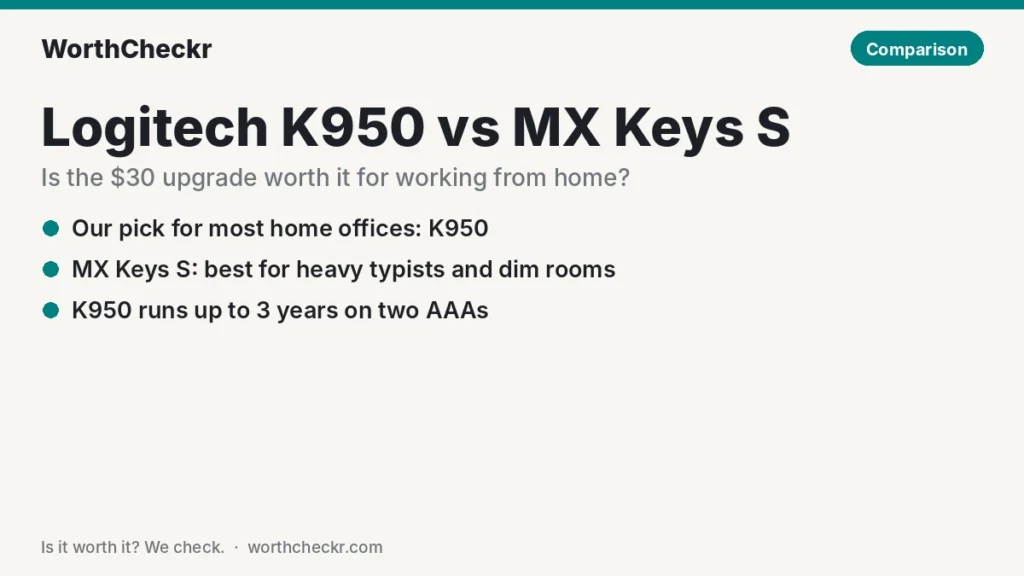
K950 vs MX Keys S — WorthCheckr pick: Logitech Signature Slim K950
✓ Worth it for most home offices: you get Logitech’s quiet low-profile typing, three-device switching and Smart Actions for roughly $30 less.
- Reviewers say it types close to the MX Keys S; iMore’s Alex Blake called the gap small.
- Two AAA batteries are rated for up to 36 months, so there’s nothing to recharge.
- Fold-out feet give an 8° typing angle; the MX Keys S angle is fixed.
- The Logi Bolt receiver is in the box and stores in a tray on the keyboard.
Pay more for the MX Keys S if you type for hours, often work in a dim room, or want deeper dished keys and a heavier, more premium build.
Last updated November 9, 2026 · Research-based analysis by Abid Shehzad, WorthCheckr
Put the Logitech Signature Slim K950 next to the MX Keys S and most people can’t tell them apart at first glance. Same slim full-size shape, same three Easy-Switch keys, same Logi Options+ app. Yet the MX Keys S usually costs around $30 more. So the K950 vs MX Keys S question is really this: what does that extra money buy you at a home office desk, and will you notice it after the first week?
The short version: the extra money buys backlighting, deeper dished keys, a heavier build and a rechargeable battery. The K950 answers with a lower price, multi-year batteries, adjustable feet and a receiver that is always in the box. WorthCheckr hasn’t tested either keyboard; this comparison is based on Logitech’s published specs, named reviewers, and what owners report at retailers and in support forums.
Setting up a whole desk? A keyboard is only as comfortable as the desk height under it. Our standing desk height calculator turns your height into keyboard, chair and monitor heights in a few seconds.
In this comparison
- K950 vs MX Keys S: the quick answer
- Specs side by side
- Typing feel: dished keys vs flatter keys
- Backlight and batteries: 10 days vs 3 years
- Typing angle and wrist comfort
- The Logi Bolt receiver: check the box first
- Reviewer scorecard: who wins each round
- Common K950 and MX Keys S problems owners report (and fixes)
- Our take: why the K950 gets the edge for most home offices
- Which should you buy? K950 vs MX Keys S by setup
- K950 vs MX Keys S FAQ
- Final verdict
K950 vs MX Keys S: the quick answer
For a typical work-from-home desk in a bright room, the K950 is the better buy. It keeps the parts of the MX experience you use every hour (quiet scissor keys, a full number pad, switching between a work laptop, a personal computer and a tablet) and drops the extras you pay a premium for.
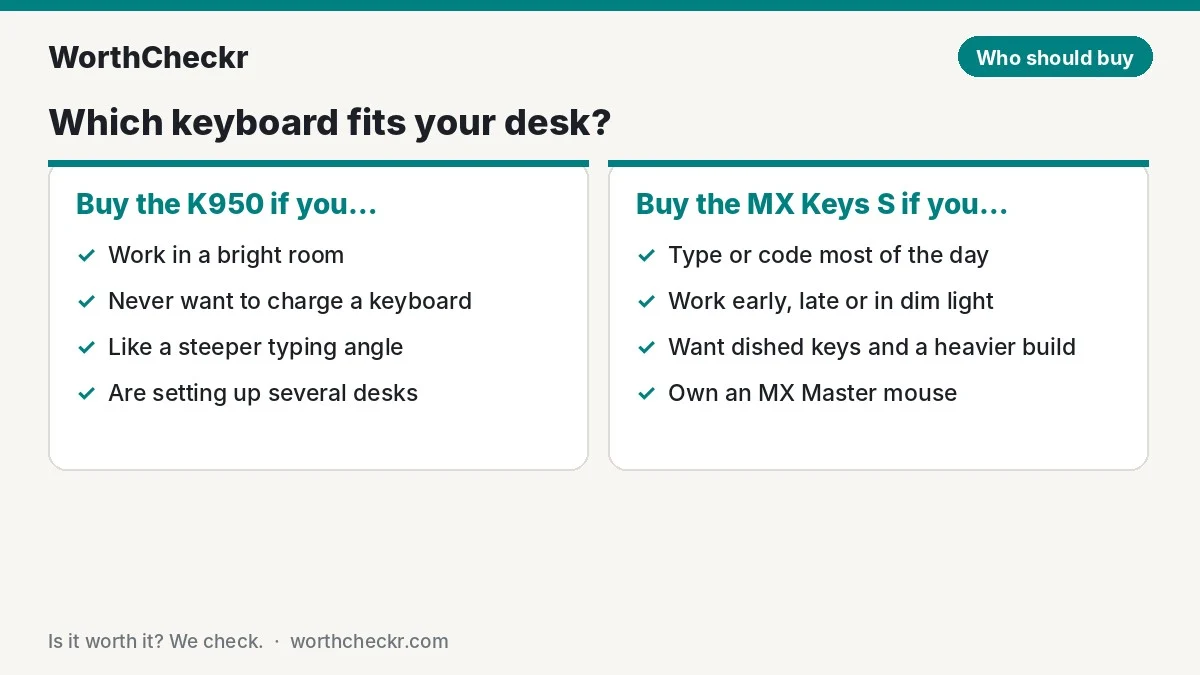
- Choose the Logitech K950 if… you work in daylight or under ceiling lights, you’d rather never think about charging, you like a steeper typing angle, or you’re buying keyboards for more than one desk.
- Choose the Logitech MX Keys S if… you write or code for most of the day, you type at night or in a dim corner, you want the keys to guide your fingertips, or you’ll pair it with an MX Master mouse and want the matching premium feel.
- Skip the K950 if… you look down at the keys a lot in low light. With no backlight and printed legends, it’s the wrong board for a dark room.
- Skip the MX Keys S if… your laptop only has USB-C ports and your box ships without a receiver (see the receiver section), or a fixed typing angle bothers your wrists.
Check Logitech K950 price → Check Logitech MX Keys S price →
Specs side by side
On paper the two keyboards share the same skeleton. The differences are in power, lighting, weight and angle.
| Spec | Logitech Signature Slim K950 | Logitech MX Keys S |
|---|---|---|
| Layout | Full size with number pad | Full size with number pad |
| Switch type | Low-profile scissor keys | Low-profile scissor keys, spherically dished |
| Backlight | None | Yes, with hand-proximity and ambient light sensors |
| Power | 2 x AAA alkaline (included) | Built-in 1,500mAh rechargeable battery, USB-C |
| Rated battery life | Up to 36 months | Up to 10 days with backlight, up to 5 months with it off |
| Connection | Bluetooth LE or Logi Bolt receiver | Bluetooth LE or Logi Bolt receiver |
| Devices | Up to 3 (Easy-Switch keys) | Up to 3 (Easy-Switch keys) |
| Bolt receiver in box | Yes, stored in the battery tray | Depends on the listing; some keyboard-only boxes say “not included” |
| Typing angle | Built-in slope plus fold-out feet (8°) | Fixed slope, no feet |
| Size | 433.8 x 134.8 x 23.1mm | 430.2 x 131.6 x 20.5mm |
| Weight | 685g with batteries | 810g |
| Software | Logi Options+ (Smart Actions, key remapping, Flow) | Logi Options+ (Smart Actions, key remapping, Flow, backlight control) |
| Typical list price | $79.99 | About $110 |
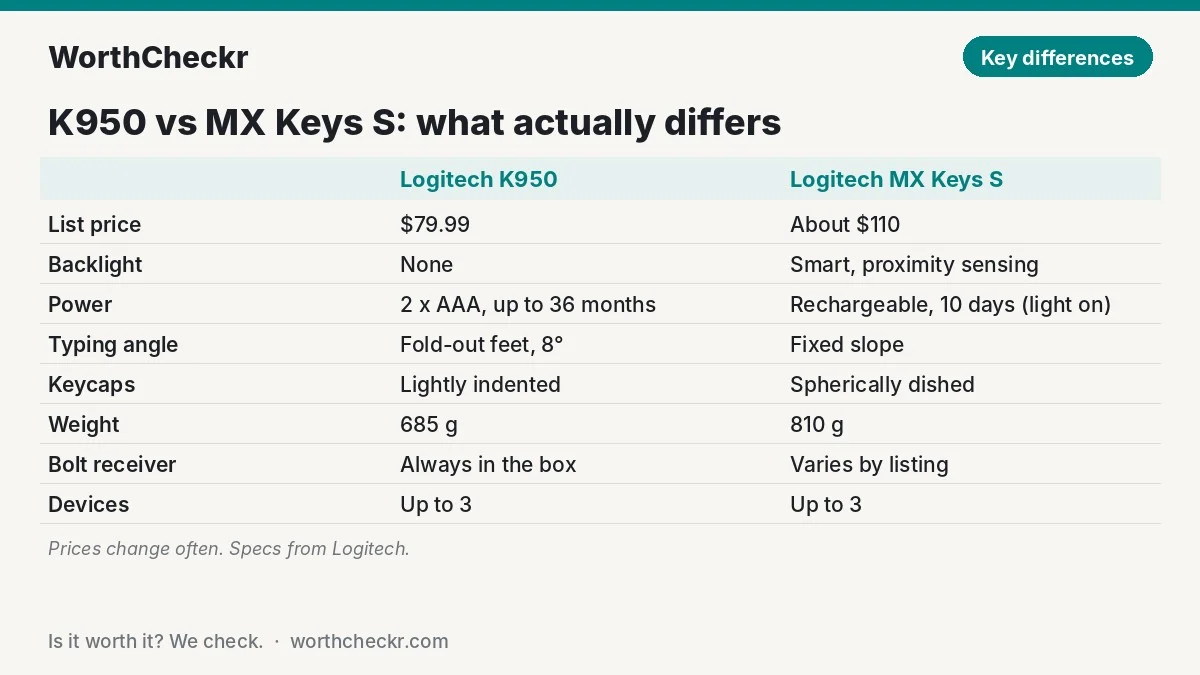
Prices move often, and both keyboards are regularly discounted. The gap between them tends to stay around $20 to $30.
Typing feel: dished keys vs flatter keys
This is where the MX Keys S earns its price, but the gap is smaller than the spec sheet suggests. Both keyboards use laptop-style scissor switches, so neither has the deep travel or click of a mechanical board. Both are quiet enough for calls with your mic on.
The MX Keys S has spherically dished keycaps: each key has a shallow bowl in the middle that centers your fingertip. iMore’s Alex Blake described the MX Keys S keys as firm but comfortable, and in his K950 review said typing on the cheaper board is close to the MX Keys S, though he noted it lacks those deeply dished tops. Trusted Reviews found the K950’s slightly indented keys snappy and comfortable for office work, with some flex in the deck only under heavy pressure.
What that means in practice:
- If you touch-type for most of the day, the dished keys help your fingers find home without looking. That’s the strongest reason to pay more.
- If your day is email, chat, spreadsheets and video calls, the K950’s typing feel is unlikely to hold you back.
- The MX Keys S is about 125g heavier. On a desk, that extra weight keeps it planted. On a laptop bag trip, the K950 is easier to carry.
Backlight and batteries: 10 days vs 3 years
The backlight is the biggest feature difference, and it drives the power story.
The MX Keys S lights up when your hands approach and dims to match the room, which is genuinely useful if you work early mornings, late evenings or in a room without good overhead light. iMore noted the lighting switches off about 15 seconds after your hands leave the keys. The cost is battery life: Logitech rates it at up to 10 days with backlighting on. Turn the light off and the rating jumps to about 5 months.
The K950 has no backlight at all, and it runs on two AAA batteries rated for up to 36 months (Logitech bases that on about 2 million keystrokes a year). There’s no cable to remember and no “low battery” surprise before a meeting.
Quick power math
- MX Keys S with the backlight on: roughly 3 charges a month, or about 36 a year. It charges over USB-C while you keep typing, so this is a habit, not a dealbreaker.
- MX Keys S with the backlight off: about 2 to 3 charges a year. At that point you’ve paid for a light you don’t use.
- K950: one pair of AAA batteries every couple of years in typical office use. Even with rechargeable AAAs, the running cost is close to zero.
A useful rule: if your desk is next to a window or under good lighting, you’ll likely turn the MX Keys S backlight off or rarely see it. That’s when the K950 makes the most sense.
Typing angle and wrist comfort
The K950 has a gentle built-in slope plus fold-out feet that raise it to an 8° typing angle. The MX Keys S has a fixed slope with no feet, and iMore listed the non-adjustable angle as one of its few downsides.
Which angle is better depends on your desk height more than your keyboard. If your desk is too high, a steeper keyboard angle bends your wrists back further, so many people end up typing flat. If your desk and chair are set correctly, either angle is fine. Before blaming the keyboard for wrist strain, check your setup with our desk height calculator, and if you’re shopping for a sit-stand desk, our standing desk buying guide explains which height range you need.
The Logi Bolt receiver: check the box first
This is the detail most comparisons skip, and it matters for work laptops. Both keyboards connect by Bluetooth or by Logitech’s Logi Bolt USB receiver. Bolt is the more reliable option in offices with crowded wireless, and some company laptops restrict Bluetooth entirely.
- K950: the Bolt receiver ships in the box and clips into the battery tray, so it’s hard to lose.
- MX Keys S: it depends on where you buy it. Some listings include the receiver, while other keyboard-only listings, including a Logitech product page and a B&H answer, say “not included”. Check the listing’s “in the box” section before buying. If it’s missing, a Bolt receiver costs extra.
- Both: Bolt receivers are USB-A. On a USB-C-only laptop such as a recent MacBook Air, you’ll need a small adapter, or plug the receiver into a monitor or dock’s USB-A port. Owners have better luck plugging it directly into the computer than into a busy hub.
- Bolt only: neither keyboard works with Logitech’s older Unifying receivers.
If you run a work laptop and a personal computer from one desk, a monitor with a built-in KVM switch can move one wired keyboard and mouse between both machines. With either of these keyboards, the Easy-Switch keys do the same job wirelessly.
Reviewer scorecard: who wins each round
| Category | Winner | What reviewers and specs say |
|---|---|---|
| Typing feel | MX Keys S (narrowly) | iMore found the K950 close to the MX Keys S but missing the dished keys; Trusted Reviews still rated the K950’s typing comfortable. |
| Build quality | MX Keys S | Trusted Reviews called the K950 a step down in construction, with slight flex under heavy pressure; the MX Keys S is heavier and feels more solid. |
| Low-light use | MX Keys S | Smart backlighting with proximity sensing; the K950 has none, and iMore missed it in low light. |
| Battery hassle | K950 | Up to 36 months on AAAs vs up to 10 days with the MX Keys S backlight on. |
| Typing angle | K950 | Fold-out feet to 8°; iMore listed the MX Keys S’s fixed angle as a con. |
| What’s in the box | K950 | Bolt receiver always included; MX Keys S varies by listing. |
| Software | Tie | Both use Logi Options+ with Smart Actions, remapping and Flow; the MX adds backlight settings. |
| Price | K950 | About $30 less at list price. |
| Buyer sentiment | Tie | Best Buy’s review summaries praise both for build quality, comfortable typing and battery life. |
| Overall | K950 for most home offices | The MX Keys S wins on feel and light; the K950 wins on value and convenience. |
Common K950 and MX Keys S problems owners report (and fixes)
Owner feedback is much deeper for the MX Keys S, which has been on sale since 2023 and shares most of its design with the original MX Keys. The K950 arrived in 2024, and owner complaints about it are thin so far. Here’s what comes up, and how often.
MX Keys S
- Lag or dropouts over Bluetooth. Several Best Buy reviews describe laggy or dropping connections, with Logitech replying to them. A long Dell community thread reports the same with the original MX Keys on Bluetooth. Fix: switch to the Bolt receiver, plug it directly into the computer rather than a hub, and update the keyboard’s firmware in Logi Options+.
- Repeating or missed keystrokes. A few owners report keys repeating on their own or dropping letters, including a Microsoft Q&A thread about the MX Keys S. Fix: same as above (receiver direct to the PC, re-pair, firmware update), and check your operating system’s key-repeat settings.
- Worn or loose keycaps. A few Best Buy reviewers mention shiny worn keycaps or keys coming off, and Logitech’s replies acknowledge it. Fix: warranty claim if it happens early; Logitech’s standard warranty applies.
- Shorter battery life than expected. Some owners are surprised by how fast the battery drains. This is almost always the backlight. Fix: lower the brightness or shorten the backlight timeout in Options+, or turn it off in daylight.
- Layout gripes. One Best Buy reviewer noted there’s no gap between the function row and the number row, and that Windows users lose dedicated Print Screen and Pause keys. Fix: remap a spare key in Options+ if you rely on screenshots.
K950
- No backlight. The most repeated complaint in reviews, from iMore to Trusted Reviews. There’s no fix; it’s the trade-off for the long battery life.
- Printed key legends. iMore pointed out the letters are printed on top of the keys, so they may wear over years of use. This is a reviewer concern rather than a widespread owner report so far.
- Hard-to-read white model. One Best Buy owner returned the off-white K950 because the light-gray letters were hard to read and switched to graphite. Fix: pick graphite if contrast matters to you.
- Slight deck flex. Trusted Reviews noticed it under heavy pressure. Owners rarely mention it in normal typing.
The overall pattern: the MX Keys S problems are mostly wireless quirks with known fixes, and the K950’s complaints are about features it doesn’t have rather than things breaking.
Our take: why the K950 gets the edge for most home offices
- The core experience is nearly the same. Quiet scissor keys, a full number pad, three-device switching, Smart Actions and Flow all carry over. Reviewers describe the typing gap as small.
- The MX Keys S’s big extra is a light many home offices don’t need. If you work in daylight, the backlight mostly stays off, and you’re paying for it anyway.
- Zero charging beats fast charging. A keyboard that runs for years on two AAAs is one less thing to manage, which matters most if you’re setting up several desks or a family computer.
- It’s more flexible out of the box. Adjustable feet and a receiver that’s always included remove two common annoyances.
The MX Keys S is still the better keyboard in absolute terms, and Trusted Reviews says so directly. If you spend six-plus hours a day typing, the dished keys and the backlight are worth the extra $30. For everyone else, the K950 is the smarter spend.
Check Logitech K950 price → Check Logitech MX Keys S price →
Which should you buy? K950 vs MX Keys S by setup
| If you… | Buy |
|---|---|
| Work in a bright room and mostly do email, chat and spreadsheets | K950 |
| Write, code or transcribe for most of the day | MX Keys S |
| Often work early, late or in a dim corner | MX Keys S |
| Hate charging peripherals | K950 |
| Use a company laptop that blocks Bluetooth | K950 (receiver always in the box), or an MX Keys S listing that includes Bolt |
| Like a steeper typing angle | K950 |
| Already own an MX Master mouse and want a matching set | MX Keys S |
| Are equipping several desks on a budget | K950 |
Pairing either keyboard with a laptop and an external screen? Check that your laptop and monitor work together with our monitor and laptop compatibility checker, and see our guide to choosing a monitor for working from home for the rest of the desk.
K950 vs MX Keys S FAQ
Is the Logitech K950 the same as the MX Keys S?
No. They look alike and share the same software and three-device switching, but the K950 has no backlight, runs on AAA batteries, has fold-out feet and costs about $30 less. The MX Keys S adds dished keys, smart backlighting, a rechargeable battery and a heavier build.
Does the K950 have backlit keys?
No. The K950 has no backlighting at all. That’s the main reason its batteries are rated for up to 36 months. If you type in the dark, the MX Keys S is the better choice.
Which types better, the K950 or MX Keys S?
The MX Keys S, but not by much. Its dished keycaps center your fingers and the heavier body feels more solid. iMore’s reviewer found the K950’s typing close to it, and Trusted Reviews rated the K950 comfortable for office work.
Do the K950 and MX Keys S work with a Mac?
Yes. Both support macOS, Windows, ChromeOS, Linux, iPadOS, iOS and Android, with a multi-OS key layout. Logi Options+ customization is available on macOS and Windows.
Does the MX Keys S come with a Logi Bolt receiver?
It depends on the listing. Some MX Keys S boxes include the receiver, while some keyboard-only listings state it isn’t included. The K950 always includes one. Check the “in the box” details before you order.
How long do the K950 batteries last?
Logitech rates the two included AAA batteries at up to 36 months, based on about 2 million keystrokes a year in an office. Heavier use will shorten that, but it’s still measured in years, not weeks.
Final verdict
Winner: Logitech Signature Slim K950, for most people working from home. It delivers nearly the same quiet, comfortable typing and the same multi-device tricks as the MX Keys S, adds adjustable feet and a guaranteed receiver, and removes charging from your life, all for about $30 less.
The MX Keys S remains the pick for heavy typists and anyone who works in low light. Its dished keys, smart backlight and solid build are real upgrades. You just need to type enough, or in dark enough rooms, to benefit from them. We’ll update this comparison as more K950 owner feedback comes in.
Check Logitech K950 price → Check Logitech MX Keys S price →
Sources: Logitech (K950 specs) · Logitech (MX Keys S specs) · iMore (K950 review, Alex Blake) · iMore (MX Keys S review, Alex Blake) · Trusted Reviews · RTINGS · B&H (K950) · B&H (MX Keys S) · Best Buy (MX Keys S owner reviews) · Best Buy (K950 owner reviews) · Microsoft Q&A