
WorthCheckr quick answer: a 27- or 32-inch 4K IPS monitor with USB-C
The safest monitor choice for most people who work from home.
✓ Works for laptop users, Windows PCs and most Macs, and stays sharp for a full day of reading and writing.
- Size: 32-inch 4K if your desk is at least 30 inches deep; 27-inch for smaller desks, Macs or dual screens.
- Resolution: 4K is the sweet spot; 5K only pays off for Mac users who read text all day.
- Panel: IPS for pure office work; OLED if you also game, watch films or edit photos.
- Connection: one USB-C or Thunderbolt cable that charges your laptop keeps the desk tidy.
Short on budget? A 27-inch 4K USB-C monitor around $250–$300 covers most of what remote workers need.
Last updated October 27, 2026 · Research-based analysis by Abid Shehzad, WorthCheckr
Knowing how to choose a monitor for working from home saves you from the two most common mistakes: buying a screen that’s too small to replace the office setup you’re used to, or paying for gaming features you’ll never use between 9 and 5. The right home office monitor comes down to five decisions: size, resolution, panel type, how it connects to your laptop, and whether you’re on a Mac.
This guide walks through each decision in plain English and points you to our deeper comparisons and buying guides for every step. All WorthCheckr verdicts are research-based: we compare official specs, expert reviews and owner feedback rather than testing hands-on.
In this guide
- How to choose a monitor for working from home: the quick answer
- Step 1: Pick the right monitor size for your desk
- Step 2: Choose a resolution (4K vs 5K vs ultrawide)
- Step 3: IPS or OLED for office work?
- Step 4: Get USB-C or Thunderbolt for one-cable laptop charging
- Step 5: Extra checks for Mac users
- Our home office monitor picks at a glance
- Every WorthCheckr monitor guide and comparison
- How to choose a monitor for working from home FAQ
- Bottom line
How to choose a monitor for working from home: the quick answer
- Most remote workers: a 27- or 32-inch 4K IPS monitor with USB-C power delivery.
- Laptop users who want one cable: a Thunderbolt hub monitor such as the Dell UltraSharp 27 4K Thunderbolt Hub (U2725QE).
- Spreadsheets, code and lots of windows: a 32-inch 4K, or a 40-inch 5K2K ultrawide if you want one screen instead of two.
- Mac users who read and write all day: a 27-inch 5K, or a 6K screen if budget allows.
- Work by day, games and films by night: an OLED with a long burn-in warranty.

Step 1: Pick the right monitor size for your desk
Size is the decision that changes your workday the most. In our 27 vs 32 inch monitor for work comparison, the numbers were clear: a 32-inch screen has about 36% more area than a 27-inch one, and at typical scaling a 32-inch 4K shows about 44% more usable workspace than a 27-inch 4K.
That extra room needs a deep enough desk. We recommend 32 inches only if your desk is at least 30 inches deep, so the screen isn’t too close to your eyes.
- Choose 32 inches if you juggle several windows all day and have the desk depth.
- Choose 27 inches if you sit close, have a shallow 24-inch desk, use a Mac or plan a dual-monitor setup.
- Two 27-inch screens beat one 32-inch only if you have the width and like a split layout. If you go this route, check our best standing desks for dual monitors so your desk can carry them.
Step 2: Choose a resolution (4K vs 5K vs ultrawide)
For a home office monitor, 4K is the default. A 27-inch 4K panel works out to about 163 pixels per inch (PPI) and a 32-inch 4K to about 140 PPI, both sharp enough for documents and spreadsheets on Windows.
5K matters mainly to Mac users. As we explain in 4K vs 5K monitor for Mac, a 27-inch 5K screen (about 218 PPI) matches how macOS is designed, so text looks as crisp as your MacBook’s screen. 5K now starts around $650–$800, while good 27-inch 4K screens cost $300–$650.
If you want one big screen instead of two, a 40-inch 5K2K ultrawide (5120 x 2160) is worth a look. Our Samsung ViewFinity S8 vs Dell U4025QW comparison picks the Samsung for most Windows laptop and desktop users, while the Dell is the safer buy for recent MacBook Pros.
Step 3: IPS or OLED for office work?
IPS is still the safe choice for pure office work. It gets bright, has no burn-in risk and is the panel most USB-C hub monitors use. Newer “IPS Black” panels also improve contrast; the Dell U2725QE is rated at 3,000:1.
OLED makes sense if your monitor does double duty. In our OLED monitor for office work explainer, we found long-term tests show burn-in from office use is real but slow and usually mild, and newer RGB stripe OLEDs fix the fuzzy text older panels had. Look for a burn-in warranty of at least three years, and use a dark taskbar, a short sleep timer and lower brightness to cut wear.
- For a 32-inch OLED you’ll also game on, see Alienware AW3226Q vs Asus XG32UQWMS. The Alienware wins on text clarity and price for work.
- For a premium 32-inch work monitor, Dell U3226Q vs U3225QE shows why the IPS Black U3225QE is the better buy for most people, unless you grade video or retouch photos for clients.
Step 4: Get USB-C or Thunderbolt for one-cable laptop charging
If you work on a laptop, the connection matters as much as the panel. A monitor with USB-C power delivery charges your laptop, carries the picture and connects your keyboard, mouse and webcam through one cable.
Not sure how many watts you need? Our free USB-C monitor charging checker shows which monitors fully power your laptop over one cable.
- Check the wattage. 65W suits most thin laptops; 90W–140W is safer for larger work laptops and 14–16-inch MacBook Pros.
- Thunderbolt hub monitors add Ethernet, more USB ports and a KVM switch, so one screen can serve a work laptop and a personal PC.
- Budget USB-C still works. In our best 27-inch 4K USB-C monitors guide, the Dell 27 Plus S2725QC gives you 4K at 120Hz with 65W USB-C, often for around $250–$300.
Step 5: Extra checks for Mac users
Macs are pickier about monitors than Windows PCs. Three things to check before you buy:
- Pixel density. Aim for about 218 PPI (27-inch 5K or 32-inch 6K) for the sharpest text, or accept slightly softer text on 4K.
- Thunderbolt compatibility. Not every Thunderbolt 5 monitor behaves the same with every MacBook. Our ultrawide comparison flags this for M4/M5 MacBook Pros.
- Stand and extras. In Studio Display vs LG UltraFine 6K, the LG wins for most Mac users on screen space and an included height-adjustable stand, while the Studio Display suits people on video calls all day thanks to its speakers and webcam.
Our home office monitor picks at a glance
| If you… | Our pick | Read the full guide |
|---|---|---|
| Want one cable for your laptop | Dell UltraSharp 27 4K Thunderbolt Hub (U2725QE) | 27-inch USB-C monitors |
| Want 4K on a budget | Dell 27 Plus S2725QC | 27-inch USB-C monitors |
| Want a big 32-inch work screen | Dell UltraSharp U3225QE | U3226Q vs U3225QE |
| Work by day, game by night | Alienware AW3226Q | AW3226Q vs XG32UQWMS |
| Want one ultrawide instead of two screens | Samsung ViewFinity S8 (40-inch) | ViewFinity S8 vs U4025QW |
| Use a Mac and want the most screen space | LG UltraFine 6K (32U990A) | Studio Display vs UltraFine 6K |
Prices change often; check current prices before you buy.
Every WorthCheckr monitor guide and comparison
Buying guides and explainers
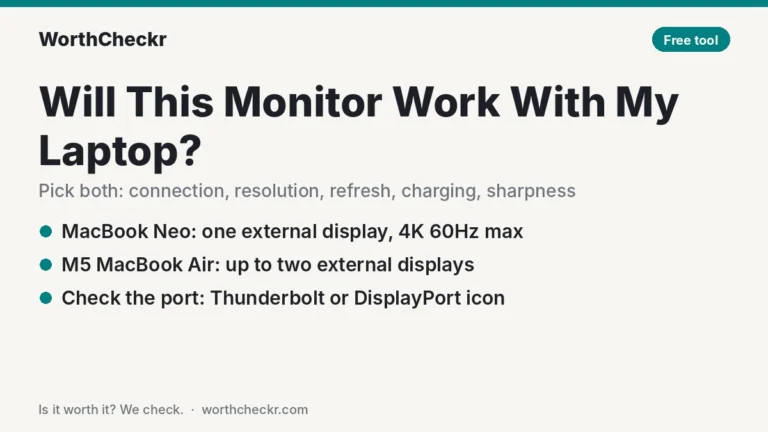
- Will this monitor work with my laptop?: a free checker for connection, resolution, refresh rate, charging and sharpness.
- Monitor size calculator: enter how far you sit and see which sizes and resolutions look sharp and fit your view.
- Best 27-inch 4K USB-C monitors for working from home: our top picks from budget to Thunderbolt hub.
- 27 vs 32 inch monitor for work: which size fits your desk and workload.
- 4K vs 5K monitor for Mac: when 5K is worth the extra money.
- OLED monitor for office work: burn-in, text clarity and the settings that matter.
- Best monitor with KVM switch for working from home: one screen, keyboard and mouse for a work laptop and a personal PC.
- Ultrawide vs dual monitors for work: whether one wide screen or two 27-inch monitors suits your home office, with desk-width and price-per-pixel math.
Head-to-head comparisons
- Dell U2723QE vs U2725QE: is the discontinued 27-inch UltraSharp still worth buying, or is the 120Hz replacement the better deal?
- Dell S2722QC vs S2725QC: whether a used 60Hz S2722QC still makes sense or the 120Hz budget 4K USB-C replacement is worth the extra.
- Dell U3226Q vs U3225QE: is the OLED UltraSharp worth it?
- HP 732xk vs Dell U3225QE: two 32-inch 4K Thunderbolt dock monitors compared on value.
- Alienware AW3226Q vs Asus XG32UQWMS: the best 32-inch OLED for work and play.
- Samsung ViewFinity S8 vs Dell U4025QW: 40-inch 5K2K ultrawides compared.
- MSI 341QPXW14G vs Dell U3425WE: a $750 QD-OLED against the IPS Black UltraSharp for the best 34-inch ultrawide for work.
- Apple Studio Display vs LG UltraFine 6K: the best Mac monitor for work.
Browse everything in our Monitors category. Setting up the rest of your desk? Start with our standing desk buying guide.
How to choose a monitor for working from home FAQ
What size monitor is best for working from home?
For most people, 27 or 32 inches. A 32-inch 4K screen shows about 44% more usable workspace than a 27-inch 4K at typical scaling, but it needs a desk at least 30 inches deep. Choose 27 inches for shallow desks, Macs or dual-monitor setups.
Is 4K worth it for a home office monitor?
Yes. At 27 and 32 inches, 4K gives noticeably sharper text than 1440p and lets you fit more on screen. It’s the best balance of sharpness and price for most remote workers.
Should I get a USB-C monitor for my work laptop?
If you use a laptop, a USB-C monitor with power delivery is one of the most useful upgrades. One cable charges the laptop, carries the picture and connects your accessories. Check the charging wattage matches your laptop: 65W for thin laptops, 90W or more for bigger ones.
Is an OLED monitor good for office work?
It can be, especially if you also game or watch films. Burn-in from office use is real but slow and usually mild in long-term tests. Pick a model with at least a three-year burn-in warranty, or stick with IPS if you only do office work or sit by a bright window.
Is one big monitor better than two smaller ones for work?
One 32-inch or 40-inch ultrawide gives you a seamless workspace with no bezel in the middle. Two 27-inch screens give more total space and a natural split layout, but need a wider desk and more cables. Pick based on your desk width and how you like to arrange windows.
What monitor resolution is best for a Mac?
About 218 PPI, which means a 27-inch 5K or a 32-inch 6K screen, gives the sharpest text on macOS. A 27-inch 4K is a good budget option, but text looks a little softer because macOS has to scale it.
Bottom line
When you’re working out how to choose a monitor for working from home, start with your desk and your laptop, not the spec sheet. Measure your desk depth to pick between 27 and 32 inches, choose 4K unless you’re a Mac user who reads all day, stick with IPS unless the screen doubles as your gaming or movie display, and get USB-C charging if you work on a laptop. Then use the comparisons above to narrow it to one model. We’ll keep this guide updated as we publish new monitor guides.
Sources: WorthCheckr’s own research-based monitor guides linked above, which cite TechRadar · PCWorld · AppleInsider · RTINGS and manufacturer spec pages