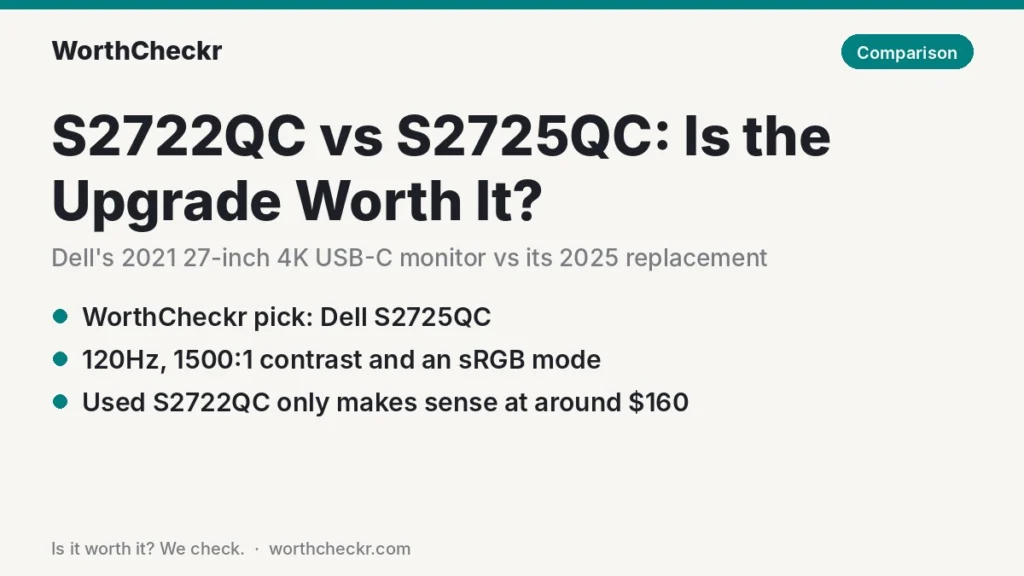
S2722QC vs S2725QC — WorthCheckr pick: Dell 27 Plus 4K USB-C (S2725QC)
✓ Worth it for anyone buying new for a home office: it replaces the S2722QC, which major US retailers no longer sell new.
- 120Hz instead of 60Hz, so scrolling long documents and dragging windows look noticeably smoother.
- Higher rated contrast (1500:1 vs 1000:1), backed up by PC Monitors’ measurements.
- A dedicated sRGB mode, which fixes the oversaturated colours reviewers flagged on the S2722QC.
- A pop-down front hub with an extra 15W USB-C port, plus HDMI 2.1 for a second machine.
A used S2722QC still makes sense if you find one for around $160, only need 60Hz, and want a headphone/audio-out jack, which RTINGS says the newer model lacks.
Last updated November 9, 2026 · Research-based analysis by Abid Shehzad, WorthCheckr
The S2722QC vs S2725QC question comes up for two kinds of people: owners of the 2021 S2722QC wondering whether Dell’s 2025 replacement is a real upgrade, and budget buyers who spot a cheap used S2722QC next to a new S2725QC and can’t tell what the extra money buys. Both are 27-inch 4K IPS monitors with a single USB-C cable that carries video, data and 65W of laptop charging.
The short version: Dell kept the parts people liked (the price bracket, the 65W USB-C, the 4K sharpness) and fixed the two most common complaints, 60Hz and a flat 1000:1 contrast. It also quietly dropped a couple of things. WorthCheckr hasn’t tested either monitor; this comparison pulls together what named reviewers measured, Dell’s own spec sheets, and what owners report on Dell’s forums, MacRumors and Best Buy. If you’re still choosing a size or panel type, start with our guide to choosing a monitor for working from home.
In this comparison
- S2722QC vs S2725QC: the quick answer
- Specs side by side
- What Dell changed in the S2725QC (and what it dropped)
- Reviewer scorecard: S2722QC vs S2725QC round by round
- Where reviewers agree
- 60Hz vs 120Hz on a 4K work screen
- Contrast, colour modes and the sRGB fix
- Common S2722QC and S2725QC problems owners report (and fixes)
- Using either one with a MacBook: a 5-point check
- Used S2722QC vs new S2725QC: the price math
- Our take: why the S2725QC gets the edge
- Which should you buy?
- Accessories worth pairing
- S2722QC vs S2725QC FAQ
- Verdict
S2722QC vs S2725QC: the quick answer
Choose the Dell S2725QC if…
- You’re buying new. It’s the current model, it usually sells between about $250 and $350, and it carries a fresh warranty.
- You spend all day in documents, spreadsheets or code and want the smoother feel of 120Hz.
- You want more accurate colours without fiddling, thanks to the sRGB preset.
- You plug in a phone or headset dongle often: the front pop-down hub saves reaching behind the screen.
Skip the S2725QC if… you rely on a Mac and can’t tolerate any quirks. A handful of owners report short-lived image retention (a faint ghost of a toolbar that fades in minutes), and a Dell forum thread describes lost audio over USB-C on Macs. It’s also not for anyone whose laptop needs more than 65W.
Choose the Dell S2722QC if…
- You can get a clean used or open-box unit for well under the S2725QC’s price.
- 60Hz is fine for you (email, writing, video calls) and you want a wired audio-out jack.
Skip the S2722QC if… you use a Mac and want a fuss-free setup. Mac-related flicker, sleep and resolution threads are the most repeated owner problem, and its firmware tool runs only on Windows. Skip it too if a warranty matters: new stock has largely disappeared from US retailers.
Check Dell S2725QC price → Check Dell S2722QC price →
Specs side by side
Figures below come from Dell’s S2725QC product page and the S2722QC User’s Guide and Reviewer’s Guide. Where Dell’s page leaves something out, the source is noted.
| Spec | Dell S2722QC (2021) | Dell S2725QC (2025) |
|---|---|---|
| Panel | 27″ IPS, 3840 x 2160, anti-glare | 27″ IPS, 3840 x 2160, anti-glare |
| Refresh rate | 60Hz | 120Hz (FreeSync Premium, 48–120Hz) |
| Rated contrast | 1000:1 | 1500:1 |
| Rated brightness | 350 nits | 350 nits |
| Colour gamut | 99% sRGB | 99% sRGB |
| Response time (GtG) | 4ms Extreme / 5ms Fast / 8ms Normal | 4ms Extreme / 5ms Fast / 8ms Normal |
| USB-C upstream | DisplayPort Alt Mode, data, 65W charging | DisplayPort 1.4 Alt Mode, 5Gbps data, 65W charging |
| HDMI | 2 x HDMI 2.0 | 2 x HDMI 2.1 (4K 120Hz) |
| Extra USB | 2 x USB-A 5Gbps | 2 x USB-A 5Gbps + 1 x USB-C 15W (front pop-down hub) |
| Audio out jack | Yes (line-out) | No, per RTINGS |
| Speakers | 2 x 3W | 2 x 5W (per Dell and PC Monitors) |
| Stand | Height (110mm), tilt, swivel, pivot | Height (about 130mm), tilt, swivel, pivot |
| VESA | 100 x 100 | 100 x 100 |
| Launch | August 2021 | March 2025 |
| Price | No longer sold new by major US retailers; used units seen around $160 | $349.99 list; deals seen from about $250 to $300 |
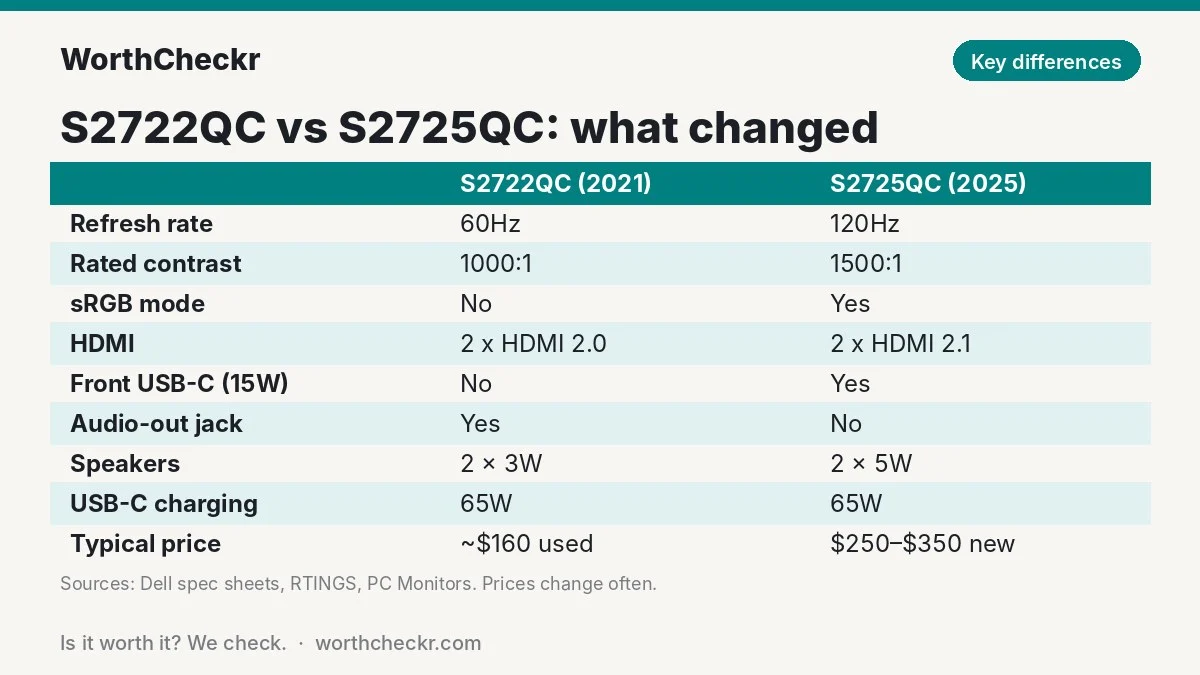
What Dell changed in the S2725QC (and what it dropped)
On paper this is a classic “same size, same resolution, better panel” refresh. The upgrades that matter for a home office:
- Refresh rate doubles. 120Hz is the headline change. PC Monitors’ launch coverage also notes a proper variable refresh range with low framerate compensation, which matters if the monitor doubles as a casual gaming screen in the evening.
- Contrast goes up. Dell rates the newer panel at 1500:1. PC Monitors measured the S2722QC at roughly 1,160–1,250:1 in 2021 and found the S2725QC sits close to its 1500:1 rating.
- An sRGB mode arrives. RTINGS’ comparison points to more accurate out-of-the-box colour on the S2725QC thanks to this preset.
- Better HDMI. Both HDMI ports move to 2.1, so a desktop PC or console can run 4K at 120Hz.
- A front hub. A pop-down panel puts one USB-A port and a 15W USB-C port within reach.
What didn’t change: 65W USB-C charging, 350-nit brightness, the 99% sRGB gamut and the four-way adjustable stand. And two things went backwards. RTINGS notes that the S2722QC has an audio jack the newer model lacks, and its reviewers felt the older model is the better-built of the two. If you plug wired headphones or desk speakers into your monitor today, that missing jack is the one change worth checking before you upgrade.
Reviewer scorecard: S2722QC vs S2725QC round by round
No single outlet reviewed both monitors in full, so this scorecard combines RTINGS’ side-by-side comparison with individual reviews from PC Monitors, Display Ninja, The AU Review, ProVideo Coalition, Impulse Gamer and StorageReview, plus owner ratings.
| Category | Winner | What reviewers said |
|---|---|---|
| Smoothness / motion | S2725QC | RTINGS and PC Monitors both list 120Hz as the key upgrade; the S2722QC stops at 60Hz. |
| Contrast | S2725QC | PC Monitors measured about 1,200:1 on the older panel and close to 1,500:1 on the newer one. |
| Out-of-box colour | S2725QC | PC Monitors’ Adam Simmons criticised the S2722QC for having no sRGB clamp; RTINGS credits the S2725QC’s sRGB mode. |
| Build feel | S2722QC | RTINGS rates the older model as feeling more solidly built. |
| Ports and hub | S2725QC | HDMI 2.1 and a front 15W USB-C port; the S2722QC keeps the audio jack. |
| Laptop charging | Tie | Both deliver 65W. ProVideo Coalition’s Allan Tépper found it ran his M4 MacBook Pro fine. |
| Speakers | S2725QC (barely) | 5W vs 3W, but The AU Review’s Pace Proctor and Impulse Gamer’s Adrian Gunning still call them weak. |
| Brightness | Tie | Both are rated at 350 nits; reviewers of the S2725QC say it can struggle in very bright rooms. |
| Price | S2722QC (used) | Used units have appeared around $160, versus roughly $250–$350 for a new S2725QC. |
| Buyer sentiment | S2725QC | 334 of 398 Best Buy ratings are five stars; MacRumors owner polls show 84–90% satisfied. |
| Overall | S2725QC | Wins 6 of 10 rounds; the older model wins only on build feel and used price. |
Where reviewers agree
Across the reviews, a few points come up every time:
- 4K at 27 inches is the sweet spot for text. Both screens get praised for crisp type, which is the main reason to pick them over a 1440p monitor for office work.
- Single-cable USB-C is the real selling point. StorageReview’s Lyle Smith liked the one-cable setup on the S2722QC, and The AU Review highlighted the same thing on the S2725QC.
- 65W is the ceiling. Dell’s own S2722QC User’s Guide warns that laptops needing more than 65W may not charge or power on from a flat battery through the monitor. The S2725QC has the same limit. Not sure whether your laptop fits? Our USB-C monitor charging checker walks through it.
- They’re not HDR monitors. Display Ninja’s Rob Shafer says HDR on the S2722QC isn’t worth using, and the S2725QC’s HDR10 support is basic at 350 nits.
- IPS glow is visible in a dark room. PC Monitors noted some glow and bleed on the S2722QC; it’s normal for budget IPS panels and rarely matters in a lit office.
60Hz vs 120Hz on a 4K work screen
Is 120Hz worth paying for if you never play games? For most people who stare at a screen eight hours a day, yes, but it’s a comfort upgrade rather than a productivity one. Text doesn’t get sharper. What changes is how the screen feels when things move: scrolling a long spreadsheet, dragging windows between displays, or moving the cursor. At 60Hz, fast-scrolling text smears into a blur; at 120Hz you can often still read it mid-scroll.
Two caveats. First, your computer has to send 120Hz. Over HDMI 2.1 that’s straightforward with a recent PC. Over USB-C, check what your laptop can output at 4K, and note ProVideo Coalition’s finding that Apple Silicon Macs only offered whole-number refresh rates on this monitor (he used the BetterDisplay app to unlock others). Second, PC Monitors found the S2725QC’s pixel response trails dedicated gaming panels, so treat it as a smooth office screen that can game, not a gaming monitor.
Setup tip: after connecting a S2725QC, open your display settings and confirm the refresh rate actually reads 120Hz. Windows and macOS sometimes default to 60Hz, which would leave the monitor’s main upgrade switched off.
Contrast, colour modes and the sRGB fix
Both monitors cover about 99% of sRGB, but the S2722QC’s panel actually reaches further, into roughly 86% of DCI-P3 by PC Monitors’ measurement. Without an sRGB clamp, everyday web content and office apps look a little oversaturated, with skin tones and reds pushed. Adam Simmons also flagged that gamma ran slightly dark (around 2.3) with no setting to change it.
The S2725QC fixes this with an sRGB preset, so documents, photos and websites look closer to how they were made, without a calibrator. Its higher contrast also helps dark-mode apps: blacks look less grey, and text on dark backgrounds has more punch. PC Monitors describes the new model’s anti-glare coating as light to very light, a type that generally keeps text looking clean while still cutting reflections.
Neither is a colour-critical screen for paid photo work. If that’s you, our roundup of the best 27-inch 4K USB-C monitors for working from home covers a factory-calibrated option.
Common S2722QC and S2725QC problems owners report (and fixes)
We looked through Dell Community threads, MacRumors owner threads, Dell’s support knowledge base, Best Buy reviews and Slickdeals comments. Reddit threads weren’t reachable for this update, so treat this as a summary of the sources below rather than a complete census. Satisfaction is high for both; these are the issues that repeat.
Dell S2725QC
| Issue | How widespread | Fix or workaround |
|---|---|---|
| Temporary image retention: a faint ghost of a toolbar or window after static content | About four owners in one MacRumors thread; most say it fades within minutes, one returned a unit | Use a shorter screen-off timer; exchange the unit if the ghost persists. No firmware fix reported. |
| No sound or no volume control over USB-C on a Mac | One Dell Community thread with several users, plus a few deal-site comments | Restarting the Mac’s audio service or rebooting helps some; use Dell Display Manager or BetterDisplay for volume. Firmware M3B102 didn’t fix it. |
| Odd colours or lost signal after sleep on some Macs | A few single reports, including a Mac mini colour thread Dell escalated | Check for macOS and monitor firmware updates; try another cable; escalate to Dell support. |
| Unit-to-unit flaws (tint on one side, a dead pixel, a loose USB-C port) | One report each in Best Buy reviews and forums | Inspect in the first days and use the retailer’s return window. |
Dell S2722QC
| Issue | How widespread | Fix or workaround |
|---|---|---|
| Mac problems: flicker, freezes, sleep crashes, or 4K60 failing over USB-C | The most repeated issue: around six Dell Community threads, e.g. M2 Air flicker, plus MacRumors owners | Dell staff say S-series monitors aren’t validated on macOS. Some owners disabled sleep or swapped cables; several threads stayed unsolved. |
| USB-A ports on the monitor stop working | Common enough that Dell published a support article | Update to firmware M3B102 or later (Windows-only tool), or change the USB-C charging setting to “Off in Off Mode”. |
| Flicker on grey, green or white backgrounds | A few owners in one Dell forum thread | No confirmed fix; return or warranty claim. |
| USB-C input dies or blacks out through a dock | Single reports | Dell suggests a hard reset (unplug power for a minute) and connecting the laptop directly instead of through a dock. |
The pattern: both models are dependable with Windows laptops. Most problems in both lists involve Macs, and the older S2722QC has the longer list. If you’re buying a used S2722QC, ask the seller which firmware it runs, because updating needs a Windows PC.

Using either one with a MacBook: a 5-point check
Because Mac users show up so often in the owner threads, here’s a quick checklist before you buy either model for a MacBook:
- Charging: a 14-inch MacBook Pro or MacBook Air works fine on 65W; a 16-inch MacBook Pro under heavy load will drain slowly.
- Scaling: at 27 inches, 4K looks best on a Mac with the “looks like 1920 x 1080” or “2560 x 1440” scaled setting. Our 4K vs 5K monitor for Mac explainer covers why 4K isn’t quite Retina-perfect at this size.
- Refresh rate: on the S2725QC, confirm 120Hz is selected in System Settings; use BetterDisplay if you need other rates.
- Audio: if sound over USB-C drops out, restart the Mac or its audio service before assuming the monitor is faulty.
- Firmware: Dell’s updater for both models is Windows-only, so borrow a Windows PC if support asks you to update.
Still unsure whether your specific laptop will drive either screen properly? Try our monitor and laptop compatibility checker.
Used S2722QC vs new S2725QC: the price math
Since the S2722QC is no longer sold new by Dell or Best Buy, the real-world choice is usually a used S2722QC against a new S2725QC. Using prices seen in the past year:
| Scenario | Typical price | What the extra money buys |
|---|---|---|
| Used/like-new S2722QC | About $160 | Baseline: 4K, 60Hz, 65W USB-C, audio jack, little or no warranty |
| New S2725QC on sale | About $250–$280 | +$90–$120 for 120Hz, ~25% more measured contrast, sRGB mode, HDMI 2.1, front 15W USB-C, new warranty |
| New S2725QC at list | $349.99 | +$190 for the same upgrades; wait for a sale |
Spread over three years of daily work, the sale-price gap works out to roughly 12 to 16 cents per working day. For a screen you look at all day, that’s a small premium for a smoother, better-contrasted image and a warranty. The math only favours the S2722QC if the used price drops well below $150 or you specifically need the audio jack. (Prices change often; treat these as snapshots.)
Our take: why the S2725QC gets the edge
- It fixes the two biggest complaints. 60Hz motion and the lack of an sRGB mode were the S2722QC’s main criticisms. Both are gone.
- Buyers like it more. Best Buy ratings are overwhelmingly five-star, and MacRumors polls lean strongly positive, even with the image-retention reports.
- It’s the one you can actually buy new. New S2722QC stock has dried up at major US retailers, and sealed units from marketplace sellers may come with warranty questions.
- The price gap is small. On sale, the S2725QC costs around $100 more than a used S2722QC, which is modest for the upgrades.
- Fewer recurring owner problems. The S2722QC’s Mac and USB-port threads span years; the S2725QC’s list is shorter so far.
The edge isn’t total. If you already own an S2722QC that works well with your laptop, it’s still a good monitor. Upgrade only if you want 120Hz and better contrast; for a bigger change, a 32-inch screen may be a better use of the money (see our 27 vs 32-inch monitor comparison for work).
Which should you buy?
| If you… | Buy |
|---|---|
| Are buying new for a Windows or Mac laptop that uses 65W or less | S2725QC |
| Want the smoothest scrolling for spreadsheets and coding at this budget | S2725QC |
| Also connect a gaming PC or console over HDMI | S2725QC |
| Can buy a tested used unit for about $160 or less and only need 60Hz | S2722QC |
| Need a monitor audio-out jack for wired speakers or headphones | S2722QC (or add a USB audio adapter to the S2725QC) |
| Already own an S2722QC that works fine | Keep it unless 120Hz matters to you |
| Have a 16-inch laptop needing 90W or more | Neither: look at the UltraSharp U2725QE |
Check Dell S2725QC price → Check Dell S2722QC price →
Accessories worth pairing
- A monitor arm: both use 100 x 100 VESA, so any standard arm frees desk space and lets you sit the screen higher than the stand allows.
- A USB-C audio adapter: a cheap fix for the S2725QC’s missing audio jack; plug it into the front USB-C port.
- A certified USB-C cable: Dell includes one with the S2725QC; if you buy a used S2722QC without a cable, get one rated for video and 100W charging.
- A desk that fits: a 27-inch monitor needs roughly 60cm of depth for comfortable viewing. Our monitor size calculator checks your desk.
S2722QC vs S2725QC FAQ
Is the Dell S2725QC the replacement for the S2722QC?
Yes. The S2725QC launched in March 2025 in the same 27-inch 4K USB-C slot, adding 120Hz, higher rated contrast, HDMI 2.1 and a front USB-C port. The S2722QC is no longer sold new at Dell or Best Buy in the US.
Is it worth upgrading from the S2722QC to the S2725QC?
Only if you want 120Hz smoothness and better contrast. Text sharpness, brightness, charging power and screen size are the same. If your S2722QC works well, most people can keep it; selling it used can cover a good chunk of the upgrade.
Does the Dell S2725QC have a headphone or audio jack?
RTINGS notes that the S2725QC lacks the audio jack the S2722QC had, and Dell’s spec list doesn’t show one. A small USB-C audio adapter plugged into the monitor’s front port is the easiest workaround.
Can the S2725QC charge a MacBook Pro?
Yes, up to 65W over one USB-C cable. That’s enough for a MacBook Air and 14-inch MacBook Pro in normal use. A 16-inch MacBook Pro under heavy load can draw more than 65W, so its battery may drain slowly.
Does the S2725QC run at 120Hz over USB-C?
Dell lists 120Hz for the panel and 4K 120Hz over HDMI 2.1. Over USB-C it depends on what your laptop can output; check your display settings after connecting. Mac owners have reported only whole-number refresh-rate options without a third-party app.
Is the S2722QC still worth buying used?
It can be at around $160 or less, if you only need 60Hz and the seller confirms it works with your laptop. Check for flicker, dead pixels and working USB ports before buying, since warranty coverage is limited.
Verdict
Winner: Dell S2725QC. In the S2722QC vs S2725QC matchup, the newer monitor keeps everything that made the original a popular single-cable home office screen and fixes its main weaknesses: 120Hz instead of 60Hz, higher contrast, and an sRGB mode for natural colours. It costs about $100 more than a used S2722QC on sale, and it’s the only one of the two you can reliably buy new with a warranty.
Buy a used S2722QC only if the price is low, 60Hz is fine, and you value its audio jack. Mac users should read the owner-problem table above either way. We’ll update this comparison as more S2725QC owner feedback and firmware updates come in. For more options, browse all our monitor guides and comparisons.
Check Dell S2725QC price → Check Dell S2722QC price →
Sources: Dell S2725QC product page · Dell S2722QC User’s Guide · RTINGS S2722QC vs S2725QC comparison · PC Monitors S2722QC review · PC Monitors S2725QC coverage · Display Ninja · The AU Review · ProVideo Coalition · Impulse Gamer · StorageReview · Notebookcheck · Dell Support · MacRumors forums