Last updated November 7, 2026 · Built by Abid Shehzad, WorthCheckr, from Apple, Microsoft, Dell, Lenovo and HP specs and our research-based monitor comparisons
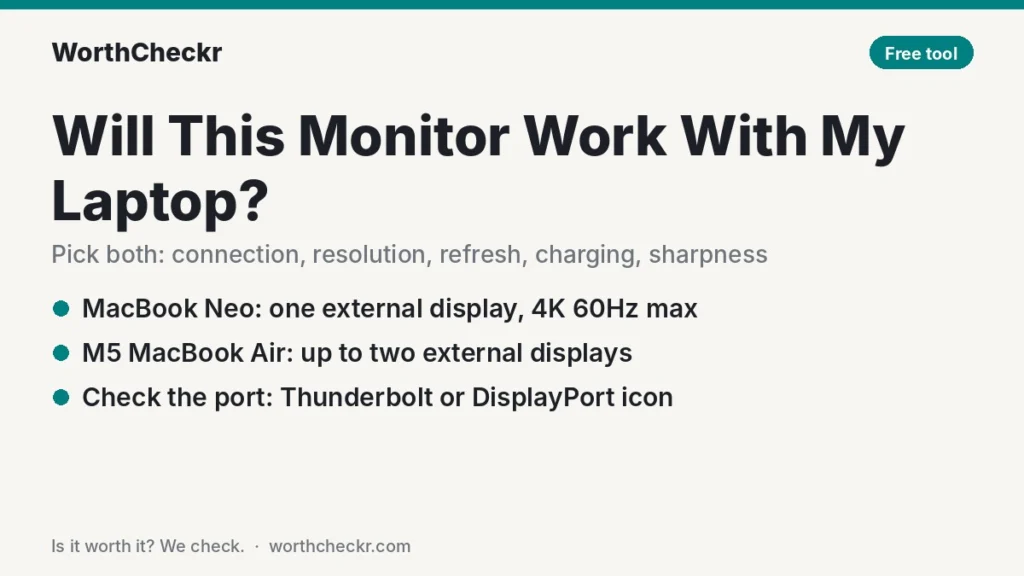
Will this monitor work with my laptop? Almost any monitor will show something when you plug it in. The real questions are whether it runs at its full resolution and refresh rate, whether one USB-C cable can carry video and charge your laptop, and whether text will look sharp. Pick your laptop and a monitor below and this free checker answers all of them in one go.
Laptop limits come from the makers’ own spec pages, and monitor specs come from our monitor comparisons. Both are linked below the checker.
Will this monitor work with my laptop?
Pick your laptop and the monitor you’re considering.
Results assume a direct connection with a good USB-C or Thunderbolt cable that supports video (the one in the monitor’s box is best). Docks and adapters can lower the limits. Mac display limits are Apple’s published maximums; Windows limits come from Microsoft, Dell, Lenovo and HP spec pages and reviews.
Will this monitor work with my laptop? The quick answer
Four things decide whether a monitor and laptop work well together:
- The port. For one-cable setups, your laptop’s USB-C port must carry video. Thunderbolt and USB4 ports always do. Plain USB-C ports sometimes don’t, so look for a DisplayPort icon or check the spec sheet.
- Resolution and refresh rate limits. Every laptop has a maximum it can send to an external screen. The MacBook Neo, for example, tops out at 4K at 60Hz, so a 5K, 6K or 120Hz monitor won’t run at its best. Newer chips raise those limits: Apple’s M6 MacBook Pro drives two 4K displays at up to 165Hz (see our M6 vs M5 MacBook Pro comparison).
- Charging power. A monitor’s USB-C port can charge your laptop, but only up to its rated wattage. A 65W monitor runs a MacBook Air fine but charges a 16-inch MacBook Pro slowly.
- Pixel density on a Mac. macOS looks sharpest on very dense screens (5K at 27 inches, 6K at 32 inches). 4K at 27 inches is fine with scaling; 1440p and most ultrawides look softer.
Common compatibility gotchas
- MacBook Neo: one display, one port. Apple says the Neo supports a single external display up to 4K at 60Hz, and only its left USB-C port carries video. macOS warns you if you use the wrong one.
- MacBook Air: two displays, not three. The M5 MacBook Air drives up to two external displays. If you want three, you need a MacBook Pro with M5 Pro or M5 Max, or a DisplayLink dock.
- No daisy-chaining over DisplayPort on Macs. Monitors that chain a second screen through a DisplayPort output (MST) only mirror on a Mac. Use two cables, or a Thunderbolt downstream port on monitors that have one.
- Apple’s Studio Display is a Mac monitor. It only has Thunderbolt inputs, no HDMI or DisplayPort, and it’s designed around macOS.
- Cheap cables cause problems. A USB-C charging cable may not carry video at all. Use the cable that came with the monitor, or a Thunderbolt 4/5 or USB4 cable.
- Docks change the limits. A dock or hub can lower the resolution and refresh rate you get. If the checker says yes but your setup runs at 30Hz, try a direct cable.
How to check your laptop’s ports
- Look for a lightning-bolt icon next to a USB-C port. That’s Thunderbolt, which always carries video and charging.
- Look for a D-shaped DisplayPort icon. That means the USB-C port carries video (DisplayPort Alt Mode).
- Check the spec sheet. On a Mac, open the Apple menu, choose About This Mac, then look up your model’s tech specs and find “External Display Support”. On Windows, search your model plus “spec sheet” and look for “DisplayPort”, “Thunderbolt” or “USB4”.
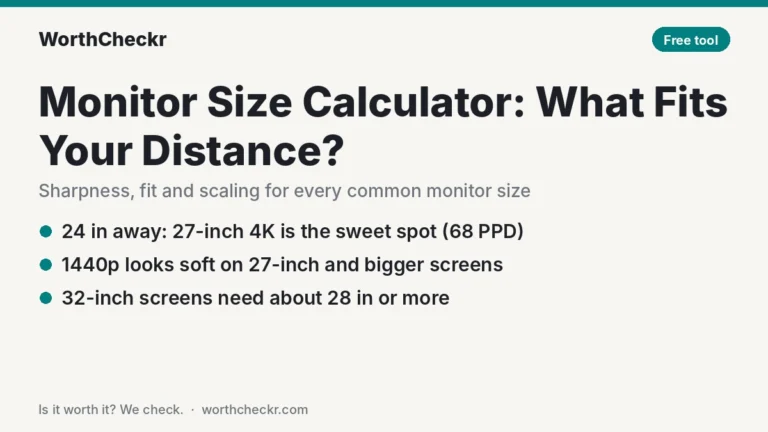
Choosing a monitor size too? Our monitor size calculator shows which sizes look sharp from where you sit, and our USB-C monitor charging checker goes deeper on charging.
Will this monitor work with my laptop FAQ
Will any USB-C monitor work with my laptop?
Only if your laptop’s USB-C port supports video (DisplayPort Alt Mode, Thunderbolt or USB4). Most recent MacBooks and Windows laptops with Thunderbolt or USB4 do. Some budget laptops have USB-C ports for data and charging only; use HDMI on those.
Can a MacBook Air run two monitors?
The M5 MacBook Air supports up to two external displays, each up to 6K at 60Hz or 4K at 144Hz, according to Apple. Older M1 and M2 MacBook Airs support only one.
Can the MacBook Neo use a 5K or 6K monitor?
It will connect, but Apple lists the Neo’s external display limit as 4K at 60Hz, so a 5K or 6K monitor runs below its native resolution and looks softer than it would on a MacBook Air or Pro.
Why is my 120Hz monitor stuck at 60Hz?
Usually because of the laptop’s limit, the cable or a dock. Check the checker above for your laptop’s maximum, use a direct Thunderbolt or USB-C video cable, and set the refresh rate manually in display settings.
Does a Thunderbolt monitor work with a laptop that only has USB-C?
Usually yes. Thunderbolt monitor ports also accept regular USB-C video, as long as your laptop’s USB-C port supports DisplayPort Alt Mode. Some hub features may run slower than over Thunderbolt.
Related tools and guides
- USB-C monitor charging checker
- Monitor size calculator
- How to choose a monitor for working from home
- 4K vs 5K monitor for Mac
- Best monitor with a KVM switch
Sources: Apple Support (MacBook Neo displays) · Apple MacBook Air specs · Apple MacBook Pro specs · Microsoft (Surface Laptop displays) · Microsoft (Surface Pro displays) · Dell XPS 14 · ServeTheHome (ThinkPad X1 Carbon Gen 14) · B&H (HP EliteBook 8 G2i) · Monitor specs from our comparisons, linked in the checker.