
WorthCheckr top pick: Dell UltraSharp 27 4K Thunderbolt Hub (U2725QE)
✓ Worth it as a monitor with KVM switch support for running a work laptop and a personal computer from one desk
- Built-in KVM, so one keyboard, mouse and webcam follow whichever computer is on screen
- Thunderbolt 4 with up to 140W of charging for the work laptop
- Sharp 27-inch 4K IPS Black panel at 120Hz, plus 2.5GbE Ethernet
- Best budget pick: KTC H27P6, a 4K KVM monitor with 90W USB-C that often sells for $270–$350
Last updated October 28, 2026 · Research-based analysis by Abid Shehzad, WorthCheckr
If your desk hosts a company laptop by day and your own PC or Mac by night, a monitor with KVM switch support built in is the simplest way to stop swapping cables. The KVM (short for keyboard, video, mouse) is built into the screen, so one press moves the picture, your keyboard, your mouse and even your webcam to the other computer.
The feature used to be limited to pricey business screens. Today you can get it on a $300 4K monitor, but the details vary a lot: charging power, which ports carry the KVM, and how quickly switching happens. We compared official spec sheets, expert reviews and owner reports to pick five that work well for home offices. New to monitor shopping? Our guide to choosing a monitor for working from home covers size, resolution and panels first.
In this guide
- Best monitor with KVM switch: the quick answer
- What a monitor with KVM switch support actually does
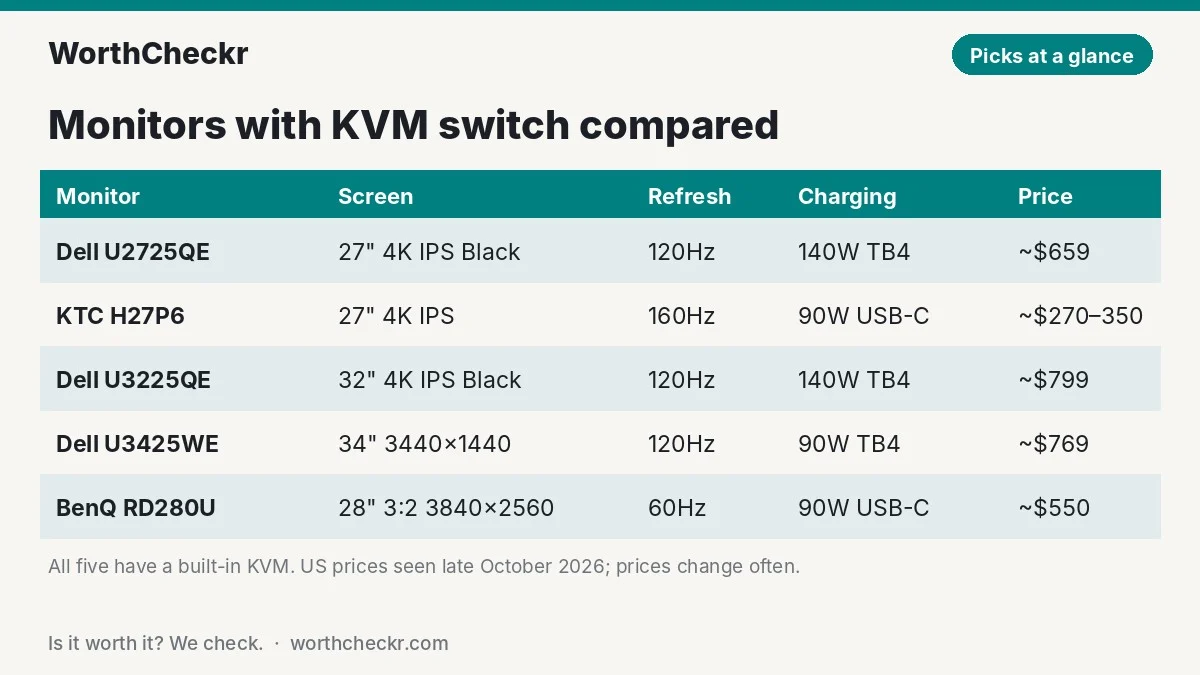
- Best monitor with KVM switch picks compared
- Best overall: Dell UltraSharp U2725QE
- Best budget KVM monitor: KTC H27P6
- Best 32-inch: Dell UltraSharp U3225QE
- Best ultrawide KVM monitor: Dell UltraSharp U3425WE
- Best for coding and writing: BenQ RD280U
- Also worth a look
- How to set up a KVM monitor for a work laptop and personal PC
- Built-in KVM monitor vs external KVM switch
- What to check before you buy a KVM monitor
- What buyers and owners say
- Monitor with KVM switch FAQ
- Bottom line
Best monitor with KVM switch: the quick answer
- Choose the Dell UltraSharp U2725QE if… you want one cable to charge a big work laptop, plus a KVM, Ethernet and a sharp 120Hz 4K panel.
- Choose the KTC H27P6 if… you want a 4K KVM monitor with 90W charging for about half the price of the Dell.
- Choose the Dell UltraSharp U3225QE if… you want the same Thunderbolt dock and KVM on a roomier 32-inch screen.
- Choose the Dell UltraSharp U3425WE if… you want to see both computers side by side on one curved 34-inch ultrawide.
- Choose the BenQ RD280U if… you write code or long documents and want a tall 3:2 screen.
Check Dell U2725QE price → Check KTC H27P6 price →
What a monitor with KVM switch support actually does
A normal monitor can show two computers, but only the picture changes when you flip inputs. Your keyboard and mouse stay tied to whichever machine they’re plugged into. A monitor with a KVM switch adds a small USB hub that can be handed from one computer to the other. Plug your keyboard, mouse, webcam or headset into the monitor, and they follow the active input.
Choosing the gear to share? Our Logitech K950 vs MX Keys S comparison covers two quiet keyboards that can also switch between three devices wirelessly, and our Insta360 Link 2 Pro vs Link 2C Pro comparison helps you pick a 4K webcam to plug into the monitor.
The catch is that each computer needs a USB data link to the monitor, not just a video link:
- USB-C or Thunderbolt: one cable carries video, USB data and laptop charging. This is the easiest option for a work laptop.
- HDMI or DisplayPort: these carry only video. The second computer also needs a USB upstream cable (USB-B or USB-C, depending on the monitor) running to the screen.
Forgetting that second cable is the most common reason a built-in KVM “doesn’t work.” In one Dell community thread about the U4919DW, an owner’s HDMI laptop couldn’t use the shared keyboard until a USB upstream cable was added and linked to that input in the monitor’s settings.
Most models switch through the on-screen menu or a shortcut button. Some Dell models add auto KVM, where moving between side-by-side pictures moves your keyboard and mouse too.
Best monitor with KVM switch picks compared
| Monitor | Size and resolution | Refresh | Laptop charging | Extras | Typical price |
|---|---|---|---|---|---|
| Dell UltraSharp U2725QE | 27″ 4K (3840 x 2160) IPS Black | 120Hz | 140W Thunderbolt 4 | 2.5GbE, daisy chain | ~$659 |
| KTC H27P6 | 27″ 4K (3840 x 2160) IPS | 160Hz (320Hz at 1080p) | 90W USB-C | Dual mode, height stand | ~$270–$350 |
| Dell UltraSharp U3225QE | 31.5″ 4K (3840 x 2160) IPS Black | 120Hz | 140W Thunderbolt 4 | 2.5GbE, pop-out USB panel | ~$799 |
| Dell UltraSharp U3425WE | 34″ curved 3440 x 1440 IPS Black | 120Hz | 90W Thunderbolt 4 | 2.5GbE, speakers, picture-by-picture | ~$769 |
| BenQ RD280U | 28.2″ 3:2 (3840 x 2560) IPS | 60Hz | 90W USB-C | MoonHalo backlight, coding modes | ~$550 |
Prices are US retail prices seen in late October 2026 (Amazon, Adorama and price trackers) and change often.
Best overall: Dell UltraSharp U2725QE
Who it’s for: anyone with a powerful work laptop who wants the monitor to act as the whole docking station.
The U2725QE is the most complete KVM monitor at 27 inches. It replaced the U2723QE, which also has a KVM; our U2723QE vs U2725QE comparison covers whether the older model is still worth buying refurbished. Its Thunderbolt 4 port delivers up to 140W, enough to keep a 16-inch laptop charged under load. Add a second computer over HDMI or DisplayPort plus a USB cable, and the built-in KVM shares your desk accessories between them. The 2.5GbE Ethernet port is handy for video calls on a work laptop that has no network jack.
It’s also our overall pick in the best 27-inch 4K USB-C monitors for working from home, because the 120Hz IPS Black panel looks better than most office screens, with a rated 3,000:1 contrast.
- Key specs: 27″ 4K IPS Black, 120Hz, Thunderbolt 4 (140W), KVM, 2.5GbE, daisy chain, full height/tilt/swivel/pivot stand
- Pros: the most charging power here, rich ports, a strong panel for text
- Cons: costs about twice as much as the KTC; some Mac owners report the USB hub sometimes connecting at slower USB 2.0 speeds
Best budget KVM monitor: KTC H27P6
Who it’s for: remote workers who want 4K and a KVM without paying UltraSharp prices, especially if the second computer is a gaming PC.
The H27P6 is a surprise value. It packs a 27-inch 4K IPS panel, a built-in KVM and 90W USB-C charging, which covers most ultrabooks and many 14-inch work laptops. A dual mode also lets it run at 1080p and 320Hz for fast games after hours. KTC’s support page says to connect video first, then a USB upstream cable, then plug accessories into the monitor. Switching happens with a joystick shortcut or the menu.
DisplayNinja’s Rob Shafer scored it 4.5 out of 5. He praised its color accuracy, sharp 163 PPI image and fully adjustable stand (up to 130mm of height). His main complaints were IPS glow and a contrast ratio of about 1,000:1, which is normal for standard IPS.
- Key specs: 27″ 4K IPS, 160Hz (1080p at 320Hz), 90W USB-C, KVM, 2x HDMI 2.1, DisplayPort 1.4, height/tilt/swivel/pivot stand
- Pros: very low price for 4K plus KVM, solid charging, fast refresh for gaming
- Cons: no Ethernet, weaker contrast than IPS Black, a smaller brand with a less established support network than Dell
Best 32-inch: Dell UltraSharp U3225QE
Who it’s for: people who keep several windows open on each computer and have a desk at least 30 inches deep.
The U3225QE is essentially the bigger sibling of our top pick. It has the same 140W Thunderbolt 4 dock, KVM and 2.5GbE Ethernet, on a 31.5-inch 4K IPS Black panel at 120Hz. TechRadar’s Collin Probst found it well suited to most business users and highlighted the KVM and pop-out USB panel. His downsides: no speakers, no OLED, and a high price.
Unsure about the size? Our 27 vs 32 inch monitor for work comparison shows how much more you can fit, and our Dell U3226Q vs U3225QE comparison explains when the OLED version is worth paying extra for.
- Key specs: 31.5″ 4K IPS Black, 120Hz, Thunderbolt 4 (140W), KVM, 2.5GbE, 3,000:1 rated contrast
- Pros: lots of room for two-app layouts, the best dock features in the group
- Cons: no speakers; one owner saw a 2–3 second keyboard delay after switching until they changed the upstream cable
Best ultrawide KVM monitor: Dell UltraSharp U3425WE
Who it’s for: people who want to watch both computers at once, such as work email on the left and a personal machine on the right.
An ultrawide is where a built-in KVM really shines. The U3425WE can split its 34-inch curved screen between two computers, and Dell’s auto KVM lets your mouse and keyboard follow whichever half you’re working in. It adds a Thunderbolt 4 port with 90W of charging, 2.5GbE Ethernet and a pair of 5W speakers. Dell launched it at $1,019.99 in 2024, but Amazon listed it around $769 in October 2026.
The 3440 x 1440 resolution is less sharp than 4K, so small text looks a bit softer. If you want a sharper ultrawide, our Samsung ViewFinity S8 vs Dell U4025QW comparison covers 40-inch 5K2K models, and the U4025QW also has a KVM.
- Key specs: 34″ curved (1900R) 3440 x 1440 IPS Black, 120Hz, Thunderbolt 4 (90W), KVM, 2.5GbE, 2x 5W speakers, PiP/PbP
- Pros: two computers side by side on one screen, speakers built in, one-cable laptop setup
- Cons: lower pixel density than 4K; 90W may not keep a heavy 16-inch laptop fully charged; one owner found switching between halves slow
Best for coding and writing: BenQ RD280U
Who it’s for: developers, writers and analysts who scroll through long pages all day.
The RD280U uses an unusual 3:2 screen at 3840 x 2560, so you see more lines of code or text than on a 16:9 monitor. BenQ’s spec sheet confirms a KVM switch, 90W USB-C charging and a USB-B upstream port for a second computer. It also has a rear “MoonHalo” light that softly lights the wall behind the screen.
PCWorld’s Matthew S. Smith wrote that “programmers, writers, and editors will adore it.” He also noted the 60Hz refresh rate, weak HDR and a high price for a 28-inch screen.
- Key specs: 28.2″ 3:2 IPS (3840 x 2560), 60Hz, 90W USB-C, KVM, HDMI 2.0, DisplayPort 1.4, USB-C downstream
- Pros: tall screen for text and code, about 163 PPI, useful coding display modes
- Cons: 60Hz only, no Ethernet, pricey for its size
Also worth a look
- MSI PRO MAX 271QPHW E14: a white 27-inch 1440p office monitor at 144Hz with 65W USB-C, a KVM and a fully adjustable stand. A sensible pick for smaller laptops if you don’t need 4K.
- Dell P3425WE: a cheaper 34-inch ultrawide from Dell’s business line. It runs at 100Hz with a KVM and Gigabit Ethernet, and launched at $690.
- Dell Pro 27 Plus (P2725QE): a well-reviewed 4K hub monitor with 90W USB-C. Reviews we read don’t list a KVM, so check Dell’s spec sheet before buying it for two computers.
How to set up a KVM monitor for a work laptop and personal PC
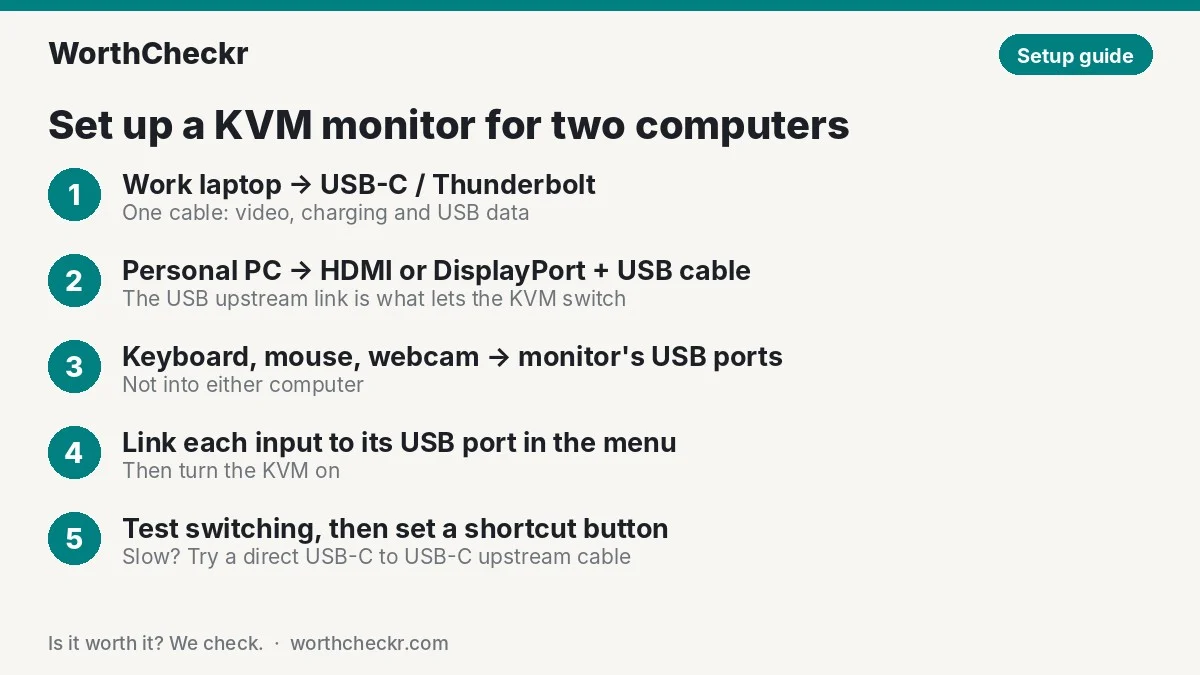
- Connect the work laptop over USB-C or Thunderbolt. One cable gives video, charging and USB data. Use the cable that came with the monitor; long or cheap cables cause many hub problems.
- Connect the second computer with video plus USB. Run HDMI or DisplayPort for the picture, and a USB upstream cable (USB-B or USB-C) for the keyboard and mouse.
- Plug your accessories into the monitor. Keyboard, mouse, webcam and USB headset all go into the monitor’s downstream ports, not into either computer.
- Link each input to its USB port. In the on-screen menu (or an app such as Dell Display Manager), match each video input with its upstream USB port, then turn on the KVM.
- Test switching and save a shortcut. Switch a few times, check that the webcam moves too, and assign the KVM to a shortcut button if your monitor has one.
If switching feels slow, try a direct USB-C-to-USB-C upstream cable instead of USB-C-to-USB-A. A U3225QE owner on Dell’s forum said that change cut a 2–3 second delay. Working at a standing desk? Our standing desk buying guide explains how to leave enough cable slack for desk height changes.
Built-in KVM monitor vs external KVM switch
| Built-in KVM monitor | External KVM switch | |
|---|---|---|
| Computers supported | Usually two | Two, four or more |
| Monitors supported | One screen | Models exist for dual and triple screens |
| Extra boxes and cables | None beyond the USB upstream link | A separate switch, power supply and more cables |
| Laptop charging | Through the monitor’s USB-C | Usually needs a separate charger or dock |
| Cost | Built into the monitor price | Extra purchase on top of the monitor |
Which should you choose? For one screen and two computers, the built-in KVM wins on simplicity. If you run two monitors per computer or more than two computers, an external switch scales better, as KVM maker TESmart points out in its own comparison. Planning a dual-screen desk? See our best standing desks for dual monitors.
What to check before you buy a KVM monitor
- Charging power: 65W suits ultrabooks, 90W covers most 14-inch laptops, and 140W is safest for 16-inch performance laptops.
- Upstream ports: make sure there’s a USB upstream port for your second computer, not only USB-C.
- KVM on the exact model: KVM support can differ within one product line, so read the spec sheet for the exact model number.
- Auto KVM and picture-by-picture: worth having if you want both computers on screen at once, which mostly matters on ultrawides.
- Mac quirks: Macs work with KVM monitors, but read owner forums for your model. Some U2725QE owners report the hub falling back to USB 2.0 on Macs.
- Your company’s rules: the KVM runs inside the monitor and needs no software, but optional monitor apps may need IT approval on a managed laptop.
What buyers and owners say
Owners mostly like built-in KVMs, but forum threads show the same few pain points:
- Switching delay: a U3225QE owner with two Mac Studios saw video switch instantly but the keyboard and mouse lag by 2–3 seconds. A Dell community manager called it a likely design limit, but the owner later fixed it with a direct USB-C upstream cable. Another owner of the same model reported unreliable switching and USB errors in Windows 11.
- Ultrawide split-screen lag: a U3425WE owner using two laptops side by side said moving between halves took about five seconds. The thread had no reply from Dell.
- Mac USB speed: on Apple’s forums, several U2725QE owners said the hub and Ethernet sometimes run at USB 2.0 speed on Macs. Power-cycling the monitor after login helped some users, but no official fix was posted.
- Budget models: owner feedback on the KTC H27P6 is thinner. Expert reviews are positive, but expect less polish in menus and support than with Dell.
The takeaway: a built-in KVM works well for most two-computer desks, but use good cables and give it a test in your return window.
Monitor with KVM switch FAQ
Does a monitor with a KVM switch work with a Mac and a Windows PC?
Yes. The KVM just moves a USB hub between computers, so it works across macOS and Windows. A keyboard with Mac and Windows layouts, such as many multi-device models, makes switching between the two easier.
Do I need a USB cable for a KVM monitor if I use HDMI?
Yes. HDMI and DisplayPort carry only video. The computer on HDMI or DisplayPort also needs a USB upstream cable to the monitor, or its keyboard and mouse won’t switch with the picture.
Can I use a KVM monitor with my company laptop?
Usually, yes. The laptop simply sees a USB hub, keyboard and mouse, and the KVM runs inside the monitor without software. Optional monitor apps may need IT approval, and some companies restrict USB storage devices.
Is a built-in KVM better than a separate KVM switch?
For one screen and two computers, yes: fewer cables, no extra box, and the monitor can charge your laptop. A separate KVM switch is better for dual-monitor setups or more than two computers.
How do you switch computers on a KVM monitor?
Usually through the on-screen menu or a shortcut button. Some Dell models offer auto KVM in split-screen mode, where your mouse and keyboard follow the half of the screen you’re using.
Why is my monitor KVM slow to switch?
Slow switching is often linked to the USB connection. Owners have cut delays by using a direct USB-C-to-USB-C upstream cable, updating monitor firmware and plugging accessories straight into the monitor rather than into a hub.
Bottom line
Top pick: Dell UltraSharp U2725QE. It’s the best monitor with KVM switch for most home offices: 140W charging covers almost any work laptop, the KVM shares your accessories with a second computer, and the 120Hz 4K panel is great for long workdays. If you’re on a budget, the KTC H27P6 gives you 4K, 90W charging and a KVM for about half the price. Pick the U3225QE for more room, the U3425WE for side-by-side work, or the BenQ RD280U for code and long documents.
Our picks are based on official specs, expert reviews and owner reports, not hands-on testing. We’ll update this guide as prices change and as new KVM monitors launch. For more options, browse our Monitors category.
Check Dell U2725QE price → Check KTC H27P6 price →
Sources: DisplayNinja (KVM monitor guide) · DisplayNinja (KTC H27P6 review) · KTC H27P6 support · TechRadar (U3225QE review) · PCWorld (BenQ RD280U review) · BenQ RD280U specs · PCWorld (Dell U3425WE launch) · MSI PRO MAX 271QPHW E14 specs · Notebookcheck (Dell P3425WE) · Dell Community (U3225QE KVM delay) · Dell Community (U3425WE KVM) · Dell Community (KVM cabling) · Apple Community (U2725QE on Mac) · TESmart · Product Chart (Dell prices)