Last updated November 9, 2026 · Built by Abid Shehzad, WorthCheckr, using manufacturers’ published monitor and arm specifications
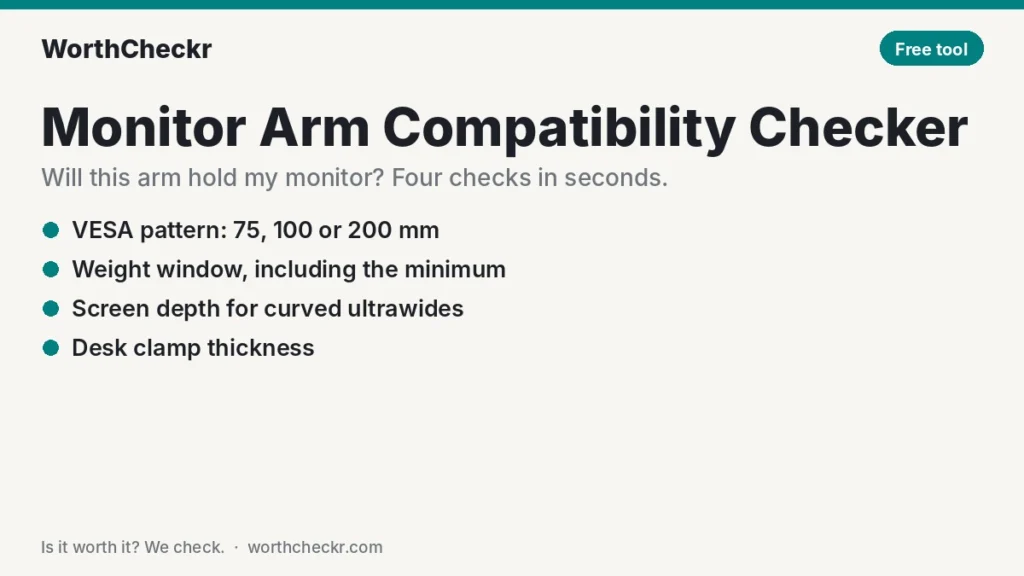
Will this monitor arm hold my monitor? Matching VESA holes is only the first check. An arm also has a weight window (a minimum as well as a maximum), some arms lose capacity with deep or curved screens, and the clamp has to fit your desktop. This free monitor arm compatibility checker runs all four checks at once. Pick a monitor and an arm from the lists, or type in your own specs, and you’ll get a clear yes, a “yes, but”, or a no, with the reason.
Every preset uses the panel-only weight (without the stand) and the arm limits from the manufacturer’s own spec sheets. Sources are listed at the bottom of the page. For the rest of your setup, see all our free home office tools.
Monitor arm compatibility checker
Choose your monitor and the arm you’re considering. Add your desk thickness to check the clamp too.
Weights are panel-only (no stand, no cables). Arm limits are the manufacturer’s published ranges. Gas-spring and counterbalance arms need a minimum load to stay put; below it, the arm drifts upward. Always confirm against your exact model’s spec sheet before buying.
Will a monitor arm hold my monitor? The quick answer
A monitor arm fits when all four of these are true:
- VESA: your monitor has VESA holes in a pattern the arm supports (most office monitors use 100 x 100 mm).
- Weight window: the monitor’s weight without its stand sits between the arm’s minimum and maximum load.
- Depth and size: deep curved screens don’t push the arm past its maker’s limits.
- Clamp: your desktop’s thickness falls inside the clamp range, with nothing underneath in the way.
Most people only check the first two numbers on the box, and the maximum at that. The checker above flags the two problems that cause most returns: a monitor that’s too light for a gas-spring arm, and a deep curved ultrawide on an arm rated for flat screens.
How the monitor arm compatibility checker works
1. VESA pattern
VESA is the standard square of four screw holes on the back of a monitor. Most 24 to 34-inch office monitors use 100 x 100 mm, and nearly every arm supports 75 x 75 and 100 x 100 mm. Larger screens can use 200 x 200 mm, which needs a heavy-duty arm such as the Ergotron HX. Some monitors have no VESA holes at all. Apple’s Studio Display is the best-known example: only the version ordered with Apple’s VESA mount adapter can go on an arm, and BenQ’s arm buying guide notes that models with a built-in stand can’t be converted.
2. The weight window (including the minimum)
Spring and gas-spring arms balance the monitor’s weight so it floats where you leave it. That balance only works inside a range. Too heavy and the arm sags. Too light and the spring pushes the monitor back up, even with the tension turned all the way down. That second problem surprises people with light 24-inch screens on arms built for 27 to 32-inch monitors. The Ergotron HX, for example, has a 9.1 kg (20 lb) minimum, which rules out almost every standard 27-inch monitor.
Always use the panel-only weight, which Dell labels “weight without stand assembly (for wall mount or VESA mount)”. The boxed weight or the weight with the stand can be 1.5 to 4 kg higher and will mislead you.
3. Screen depth and curved monitors
A curved ultrawide puts its weight further from the arm’s tilt joint, which loads the joint harder than a flat screen of the same weight. Ergotron is specific about this: it warns that monitors deeper than about 64 mm (2.5 in) may reduce the LX arm’s capacity, and that displays deeper than 152 mm (6 in) drop the HX arm’s limit to 12.7 kg (28 lb). Dell’s 34-inch U3425WE is 105 mm deep without its stand, so on an LX it’s within the weight range but past the depth guidance. The checker shows that as a caution rather than a fail.
4. Desk clamp fit
Every clamp has a thickness range. Very thin or hollow-core desktops sit below some clamps’ minimum and can also crack under the pressure, so a reinforcement plate is worth adding. Very thick butcher-block tops can exceed the maximum. On standing desks, the real obstacle is often the frame’s crossbar or the motor housing under the back edge, so check the spot where the clamp will actually go.
Monitor weights and arm limits used in the checker
These are the presets built into the tool, taken from manufacturers’ and retailers’ published spec sheets.
| Monitor | Weight without stand | VESA | Depth without stand |
|---|---|---|---|
| Dell UltraSharp U2723QE (27″ 4K) | 4.48 kg (9.9 lb) | 100 x 100 mm | About 60 mm |
| Dell UltraSharp U2725QE (27″ 4K) | 5.22 kg (11.5 lb) | 100 x 100 mm | 56 mm |
| Apple Studio Display (VESA adapter version) | 5.4 kg (11.9 lb) | 100 x 100 mm | 31 mm |
| Dell UltraSharp U3225QE (32″ 4K) | 6.52 kg (14.4 lb) | 100 x 100 mm | 58 mm |
| Dell UltraSharp U3425WE (34″ curved) | 7.78 kg (17.2 lb) | 100 x 100 mm | 105 mm |
| Dell UltraSharp U4025QW (40″ curved) | 8.35 kg (18.4 lb) | 100 x 100 mm | 108 mm |
| Arm | Load range | VESA | Clamp range | Listed screen size |
|---|---|---|---|---|
| Ergotron LX desk arm | 3.2–11.3 kg (7–25 lb) | 75, 100 mm | 10–60 mm (0.4–2.4 in) | Up to 34″ |
| Ergotron HX desk arm | 9.1–19.1 kg (20–42 lb) | 75 to 200 mm | 10–66 mm (0.4–2.6 in) | Up to 49″ |
| North Bayou F80 | 2–9 kg (4.4–19.8 lb) | 75, 100 mm | 10–90 mm | 17–30″ |
| Uplift Crestview single | 1–15 kg (2.2–33 lb) | 75, 100 mm | 10–84 mm (0.4–3.3 in) | Not listed |
| Uplift Range single | 2–7.9 kg (4.5–17.5 lb) | 100 mm | 19–95 mm (0.75–3.75 in) | Not listed |
| Desky single arm | 2–10 kg (4.4–22 lb) | 75, 100 mm | 10–50 mm (0.4–2 in) | Up to 38″ |
| StarTech ARMSLIM | Up to 7 kg (15.4 lb) | 75, 100 mm | 20–100 mm | 12–34″ |
| Amazon Basics gas spring single | 2–7 kg (4.4–15.4 lb) | Check listing | Check listing | 15–27″ |
Two quick takeaways: the popular Ergotron LX covers every flat monitor in the list, but the curved ultrawides go past its depth guidance; and the Ergotron HX is built for heavy screens, so none of these monitors reaches its 9.1 kg minimum on its own.
Common monitor arm problems (and fixes)
- The monitor drifts up. The monitor is lighter than the arm’s minimum, or the tension is set too high. Turn the tension screw toward “minus” (often a 4 or 5 mm Allen key at the elbow). If it’s already at the stop, you need an arm with a lower minimum.
- The monitor droops or tilts forward. It’s near or over the maximum, or the tilt joint is too loose for a deep curved screen. Increase tension, tighten the tilt joint, or move to a heavy-duty arm or tilt accessory.
- The arm wobbles when you type. Thin desks flex, and long arms magnify every bump. Clamp near a desk leg, add a reinforcement plate, or shorten the extension. On a standing desk, a sturdier frame helps; see our guide to fixing standing desk wobble.
- The clamp won’t fit under the desk. Crossbars, drawers and motor boxes get in the way. Use a grommet or bolt-through mount, or a clamp kit for thinner surfaces.
- The VESA cover is stuck or recessed. Some monitors hide VESA holes behind a cover or in a recess; the spec sheet usually notes it. Use the screws and spacers that come with the arm.
Monitor arm compatibility checker FAQ
How do I know if a monitor arm is compatible with my monitor?
Check four things: the VESA pattern (usually 100 x 100 mm), the monitor’s weight without its stand against the arm’s minimum and maximum load, the screen’s depth if it’s curved, and your desk thickness against the clamp range. The checker on this page runs all four at once.
Which weight should I use for a monitor arm?
Use the panel-only weight, listed as “weight without stand” or “for VESA mount” on the spec sheet. Don’t use the weight with the stand or the shipping weight, which can be several kilograms higher.
Why does my monitor arm keep rising?
The monitor is too light for the arm’s spring, or the tension is set too high. Turn the tension down. If it’s already at its lowest setting, the monitor is below the arm’s minimum load and you need an arm rated for lighter screens.
Can a monitor arm hold a curved ultrawide?
Often yes, but check depth as well as weight. Curved screens put more strain on the tilt joint. Ergotron, for example, says screens deeper than 2.5 inches may reduce the LX’s capacity and screens deeper than 6 inches lower the HX’s limit to 28 lb.
Can I put an Apple Studio Display on a monitor arm?
Only the version bought with Apple’s VESA mount adapter. That model weighs 5.4 kg (11.9 lb) and uses a 100 x 100 mm pattern. Studio Displays ordered with Apple’s tilt or height-adjustable stand don’t have VESA holes.
Can I clamp a monitor arm to a standing desk?
Yes. Clamp to the desktop away from the frame’s crossbar, check the clamp range against your desktop thickness, and leave enough cable slack for the desk’s full height range. Count the arm and monitor toward the desk’s lifting capacity too.
Related tools and guides
An arm makes it easy to put the screen where it should be: top of the screen at or slightly below eye level, about an arm’s length away. Our standing desk height calculator gives you a target monitor height for sitting and standing, and the monitor size calculator checks whether your screen size suits your viewing distance. Shopping for the monitor itself? Start with our guide to choosing a monitor for working from home.
Sources: Haworth (Ergotron LX specs) · Ergotron (LX depth note) · B&H (Ergotron HX specs) · ErgoDirect (HX depth note) · Uplift (Crestview spec sheet) · Uplift (Range spec sheet) · Desky (spec sheet) · StarTech (ARMSLIM datasheet) · North Bayou (F80 manual) · Dell (U2723QE user guide) · B&H (U3225QE) · B&H (U4025QW) · PB Tech (U3425WE) · LambdaTek (U2725QE) · Apple (Studio Display specs) · BenQ