
Short answer: yes, for most people, if you pick the right OLED
✓ Worth it for remote workers who also game, watch films or edit photos, and who can live with a glossy screen.
- Long-term tests show burn-in from office use is real but slow and usually mild.
- New RGB stripe OLEDs, like the Alienware AW3226Q, fix the fuzzy text older panels had.
- Choose one with a burn-in warranty of at least three years.
- A few free settings cut wear a lot: dark taskbar, short sleep timer, lower brightness.
Stick with IPS if you only do office work, want one-cable USB-C laptop charging, or sit by a bright window.
Last updated October 22, 2026 · Research-based analysis by Abid Shehzad, WorthCheckr
OLED monitors have dropped to around $700 for a 32-inch 4K model, so a lot of remote workers are asking the same thing: is an OLED monitor for office work a smart buy, or will a day of spreadsheets, Slack and a fixed taskbar ruin it? The honest answer has changed in 2026, thanks to better panels and two years of real burn-in testing.
Below, we pull together what long-term tests from TechSpot and RTINGS found, what display experts say about OLED text clarity, what brands cover under warranty and what office users report on forums. WorthCheckr hasn’t run its own burn-in test; this is a research-based explainer.
New to buying a home office monitor? Start with our guide to choosing a monitor for working from home, which links every WorthCheckr monitor pick and comparison.
In this guide
- Is an OLED monitor good for office work? The quick answer
- OLED vs IPS for office work, side by side
- OLED burn-in from office work: what the tests show
- OLED text clarity: why subpixel layout matters
- Brightness, glare and eye comfort
- OLED burn-in warranties by brand
- How to set up an OLED monitor for office work
- OLED or IPS: which should you choose?
- What office users say
- OLED monitor for office work FAQ
- Bottom line
Is an OLED monitor good for office work? The quick answer
An OLED is a good choice if…
- Your monitor does double duty: work by day, games or streaming by night.
- You work in a room you can keep moderately lit, without a window behind you.
- You buy a model with clean text (RGB stripe, or a high pixel density) and a three-year burn-in warranty.
- You’re willing to change a few settings to protect the panel.
A good IPS monitor is the better choice if…
- You only do office work and don’t care about deep blacks or HDR.
- You want to plug in a laptop with one USB-C cable that also charges it.
- Your desk faces a bright window, or you want a matte screen.
- You’d rather never think about burn-in or pixel refresh cycles.
Check Alienware AW3226Q price → Check Dell UltraSharp U2725QE price →
OLED vs IPS for office work, side by side
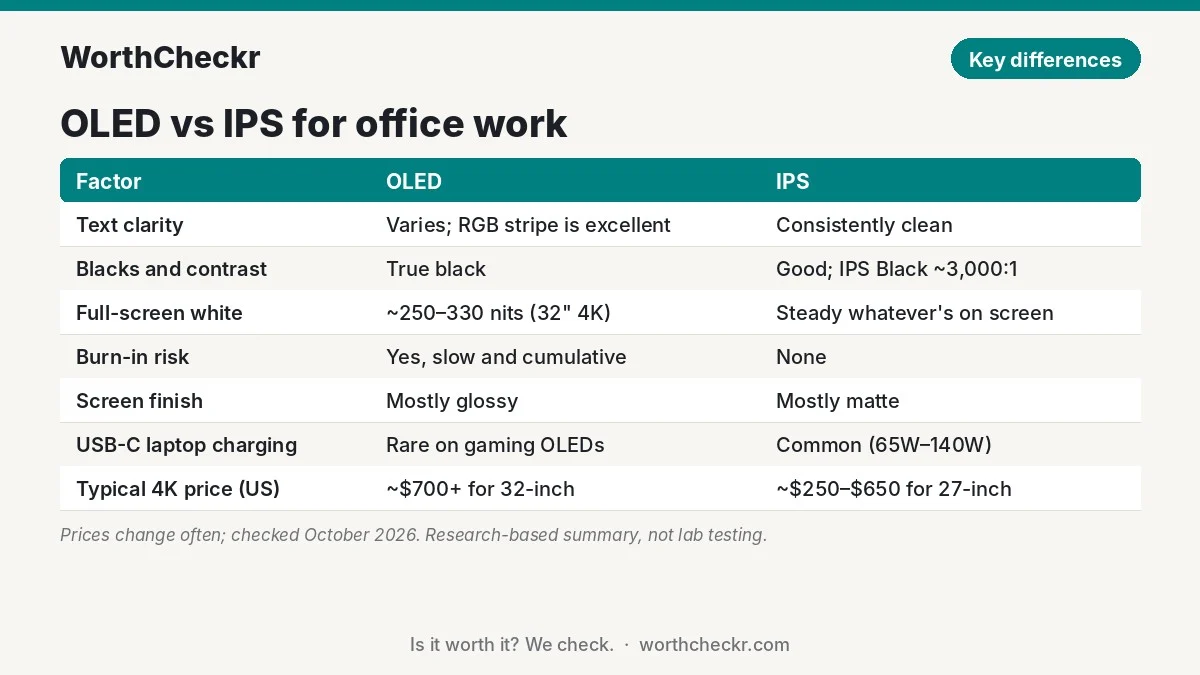
This table compares the two panel types as they stand in late 2026. The OLED column reflects current 4K models; the IPS column reflects the 4K USB-C office monitors in our best 27-inch 4K USB-C monitors for working from home guide.
| Factor | OLED | IPS |
|---|---|---|
| Text clarity | Varies by subpixel layout; new RGB stripe panels are excellent | Consistently clean (standard RGB stripe) |
| Contrast and blacks | Near-infinite; true black | Good; IPS Black models around 2,000–3,000:1 |
| Full-screen white brightness | Around 250–330 nits on current 32-inch 4K models | Holds the same brightness whatever is on screen |
| Burn-in risk | Yes, slow and cumulative with static content | No |
| Screen finish | Mostly glossy; reflects lamps and windows | Mostly matte; some glossy options |
| USB-C laptop charging | Rare on gaming-focused OLEDs | Common, from 65W to 140W |
| Refresh rate | Typically 165–240Hz | Typically 60–120Hz on office models |
| Typical 4K price (US) | About $700+ for 32-inch | About $250–$650 for 27-inch |
| Best for | Work plus gaming, films, photo editing | Pure office work, laptop docking |
Prices change often. IPS prices are from our October 19, 2026 guide; OLED prices from current list prices.
OLED burn-in from office work: what the tests show
Burn-in is the fear that stops most people. It happens because OLED pixels make their own light and slowly wear as they’re used. Pixels that show the same bright image for thousands of hours, like a white taskbar, wear faster than the rest. Once that gap gets big enough, you see a faint ghost of the image.
The most useful real-world evidence comes from TechSpot. Tim Schiesser used an MSI MPG 321URX, a 32-inch 4K QD-OLED, as his main work monitor and deliberately skipped the usual precautions: no dark mode, no auto-hidden taskbar and long sleep timers. His March 2026 two-year update logged about 6,500 hours of mostly static productivity work at around 200 nits. Here’s what he found:
- Faint burn-in showed up after about three months, visible mainly on mid-gray test screens.
- By two years, a line down the middle (from side-by-side windows) and the taskbar were clearly visible on test patterns, and faint icon shadows had appeared.
- It wasn’t speeding up. He saw no sign of faster decline compared with the 18-month check.
- Daily use was mostly unaffected. His summary: “burn-in is not severe after two years.” The center line was occasionally distracting in dark-gray apps like Photoshop.
Two points matter for you. First, wear depends on hours, so four hours a day of static content should take roughly twice as long to reach the same point as eight. Second, his setup was close to worst case. Normal habits, covered below, should slow it down.
RTINGS’ long-running TV torture tests, reported by KitGuru in August 2026, add a useful caveat: newer OLED panels are much brighter, but they didn’t resist burn-in better than a 2017 panel when both ran at maximum brightness. The takeaway is simple. Running a modern OLED below its maximum brightness is what buys you longevity.
OLED text clarity: why subpixel layout matters
The second big complaint about OLED for office work is text that looks soft, shadowed or color-fringed. That’s not your eyes. It comes from how the tiny red, green and blue subpixels are arranged.
Windows’ ClearType smooths text by assuming subpixels sit in a red-green-blue row. Most IPS monitors use exactly that. Many OLEDs don’t, so ClearType’s tricks misfire and leave colored edges. PCMonitors.info has a detailed write-up of this.
| Panel type | Subpixel layout | Text on Windows | Example |
|---|---|---|---|
| QD-OLED (Samsung) | Triangle (green above red and blue) | Thin color fringe on top and bottom edges; less visible at high pixel density | MSI MPG 321URX |
| Older WOLED (LG) | RWBG with a white subpixel | Most noticeable fringing and shadowing, especially at 1440p | Earlier 27-inch 1440p WOLEDs |
| Newer WOLED (LG) | RGWB | Improved; Windows Central saw no obvious fringing at normal distance | Asus ROG Strix XG32UQWMS |
| RGB stripe tandem OLED (LG) | Red-green-blue row, like IPS | Clean, no color fringing, per Tom’s Hardware and TechSpot | Alienware AW3226Q |
Pixel density matters too. PCMonitors.info found fringing much less noticeable on higher-density panels. A 27-inch or 32-inch 4K OLED (about 160 or 140 pixels per inch) hides fringing far better than a 27-inch 1440p model (about 110).
Mac users have it easier: macOS doesn’t use subpixel text smoothing, so layout matters less there. For Windows users, our head-to-head of the AW3226Q vs XG32UQWMS for working from home shows how much the new RGB stripe panel helps in practice.
Brightness, glare and eye comfort
OLEDs dim themselves when a lot of the screen is bright. That’s called automatic brightness limiting, and it shows up most in office work, where you often have a full white document open.
- Full-screen brightness is modest. Current 32-inch 4K OLEDs are rated at around 250–330 nits for a full white screen. That’s comfortable in most rooms, but it can feel dim next to a sunny window. Our Dell U3226Q vs U3225QE comparison shows how much brighter an IPS Black work monitor gets on full white screens.
- Brightness can shift. PC Gamer’s Jeremy Laird found content-based brightness changes on the Asus XG32UQWMS distracting at times. Many OLEDs have a “uniform brightness” mode that keeps levels steady at a lower ceiling; for office work, that’s usually the better setting.
- Glossy screens reflect. Most OLEDs are glossy, which makes blacks look deep and text crisp, but lamps and windows behind you will show up. TechSpot noted this on the AW3226Q.
- Flicker sensitivity varies. Expert Reviews’ Sasha Muller noticed subtle flicker on the AW3226Q and said some people may find it distracting over a long workday. If you’re sensitive to flicker, check reviews of the exact model.
OLED burn-in warranties by brand
A burn-in warranty is the single best safety net for office use. Here’s what major brands offered on OLED monitors as of BGR’s roundup in March 2026. Always check the terms for your exact model and region. For a newer example, the 34-inch MSI PRO MAX includes three years of burn-in cover, which we weigh up in our MSI 341QPXW14G vs Dell U3425WE ultrawide comparison.
| Brand | Burn-in coverage | Notes |
|---|---|---|
| Dell / Alienware | 3 years | Covers all its OLED monitors |
| MSI | 3 years | No special conditions listed |
| Asus | 2 or 3 years by model | Some portable and ProArt models get 2 years |
| Corsair | 3 years (limited) | Requires its panel-protection features to be used |
| LG | 2 years | Home personal use only; commercial use excluded |
Given how TechSpot’s test progressed, three years of coverage takes most of the risk out of buying an OLED for desk work.
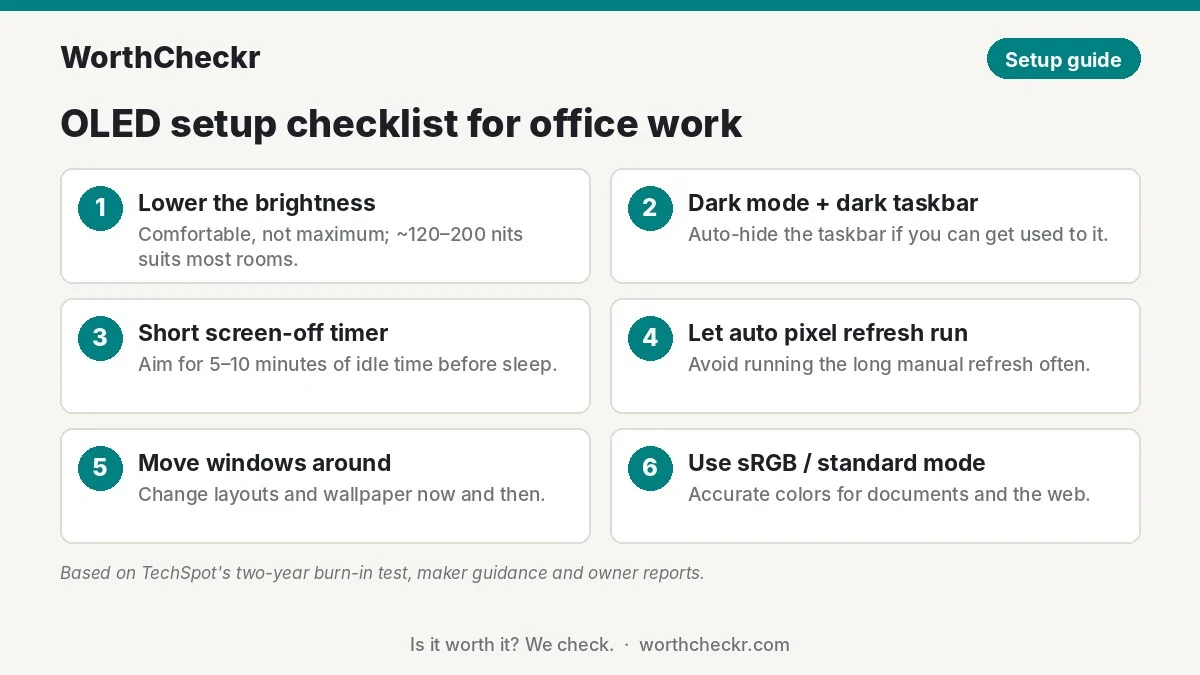
How to set up an OLED monitor for office work
None of these steps cost anything, and together they cut the static, bright content that causes most wear.
- Lower the brightness. Aim for a comfortable level, not the maximum. Many people find about 120–200 nits comfortable for documents indoors.
- Use dark mode and a dark taskbar. In Windows, set apps and the taskbar to dark. Turn on auto-hide for the taskbar if you can get used to it.
- Set a short screen-off timer. Five to ten minutes is a good target. TechSpot’s tester used a two-hour sleep timer and called that “not ideal.”
- Let the monitor run its own pixel refresh. Most OLEDs run a short care cycle when you switch them off after a few hours. On the Overclockers UK forum, one member citing a Dell manual said the longer manual refresh shouldn’t be run often, because it uses up panel life.
- Move things around. Don’t leave the same window layout in the same place every day for years. Changing your wallpaper and occasionally swapping window sides helps.
- Use the sRGB or standard mode for work. Wide-gamut modes can make office colors look oversaturated. TechSpot found the AW3226Q’s sRGB mode especially accurate.
One more practical point: if your OLED sits on a standing desk, mount it firmly. A heavy 32-inch screen can wobble at standing height; our single vs dual motor standing desk guide explains which frames handle that best.
OLED or IPS: which should you choose?
| If you… | Choose |
|---|---|
| Work all day and game or stream most evenings | OLED with RGB stripe or 4K resolution |
| Only do office work and want zero maintenance | IPS |
| Want one-cable USB-C charging for a work laptop | IPS (most gaming OLEDs lack it) |
| Edit photos or video and want true blacks | OLED, set to an accurate color mode |
| Sit next to a bright window | IPS, ideally matte |
| Need a big ultrawide for spreadsheets | IPS ultrawide; see our ViewFinity S8 vs Dell U4025QW comparison |
| Keep a monitor six years or more with static apps open 10 hours a day | IPS, or OLED only with a long burn-in warranty |
Check Alienware AW3226Q price → Check Dell UltraSharp U2725QE price →
What office users say
Owner reports are mostly positive, with burn-in worries in the background rather than in the foreground.
- On the Overclockers UK forum, an owner of an Alienware AW3423DWF ultrawide QD-OLED who works in Outlook, Teams and Excel reported no blurry text and no burn-in, adding that the screen going dark for its refresh cycle doubles as a reminder to take a break.
- In the same thread, someone using an LG C3 OLED TV as a work monitor said text looks fine after many workdays, and that they expect burn-in eventually and plan to replace it when it happens.
- Members disagreed about how often to run manual pixel refresh, which is why we suggest letting the monitor handle it automatically.
- A Windows Forum write-up on the Asus XG32UQWMS made a fair point that applies to every OLED: proximity sensors and screen savers reduce idle wear, but they can’t undo wear from a taskbar that’s visible all day.
We didn’t find large-scale owner surveys on OLED longevity in office use, so treat these as individual experiences, not proof.
OLED monitor for office work FAQ
How long does it take for an OLED monitor to burn in with office use?
In TechSpot’s worst-case test, faint burn-in appeared after about three months of 8+ hour days with no precautions, and it was still mild after two years and about 6,500 hours. With dark mode, a short sleep timer and lower brightness, it should take considerably longer.
Is OLED or IPS better for working from home?
IPS is the simpler choice for pure office work: no burn-in, matte screens and common USB-C charging. OLED is better if you also game, watch films or edit photos and want deep blacks, as long as you pick one with clean text and a burn-in warranty.
Why does text look blurry on my OLED monitor?
Most OLEDs use subpixel layouts that Windows’ ClearType wasn’t designed for, which causes colored edges. Run the ClearType tuner and pick the sharpest sample, use 4K rather than 1440p if you can, or choose an RGB stripe OLED such as the Alienware AW3226Q.
Does dark mode prevent OLED burn-in?
It doesn’t prevent it entirely, but it helps a lot. Dark backgrounds light up fewer pixels, so they wear more slowly. A dark or auto-hidden taskbar matters most, because it’s the one element that’s on screen all day.
Is an OLED monitor bad for your eyes?
Not inherently. Some people notice flicker on certain models, and glossy screens can cause reflections. Set a comfortable brightness, avoid a bright window behind you and check reviews of your exact model if you’re sensitive to flicker.
Does the OLED burn-in warranty cover office use?
Usually yes for home use. Dell, MSI and most Asus models offer three years of burn-in cover. LG offers two years and excludes commercial use, and Corsair requires its protection features to be switched on. Check your model’s terms before buying.
Bottom line
In 2026, an OLED monitor for office work is a reasonable choice, not a risky one. Two years of heavy testing showed burn-in is slow and mostly cosmetic, three-year warranties are now common and RGB stripe panels finally make OLED text as crisp as IPS. If your monitor is for work and play, a 4K OLED like the Alienware AW3226Q, our pick over the Asus XG32UQWMS, is worth it.
If your screen is purely for work, and especially if you want one-cable laptop charging or sit by a bright window, a good 4K IPS monitor is still the smarter, simpler buy. We’ll update this guide as new long-term burn-in results arrive.
More monitor guides and comparisons: Monitors
Sources: TechSpot (two-year burn-in test) · TechSpot (nine-month update) · KitGuru on RTINGS testing · PCMonitors.info · BGR · Tom’s Hardware · TechSpot (AW3226Q) · Expert Reviews · Windows Central · PC Gamer · Overclockers UK forum · Windows Forum