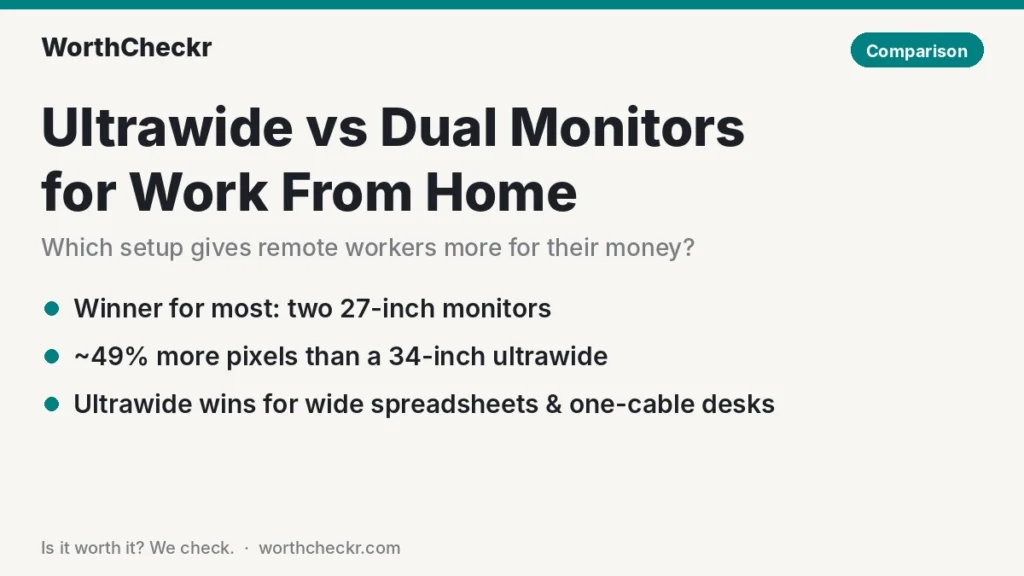
Ultrawide vs dual monitors for work, WorthCheckr answer: two 27-inch monitors for most remote workers; an ultrawide if your work is one wide window
✓ Worth it for… dual monitors suit anyone who splits the day between calls, chat, email and documents and shares their screen often.
- Two 27-inch 1440p screens have about 49% more pixels than a 34-inch 3440 x 1440 ultrawide.
- A pair of 27-inch 4K monitors costs roughly $30–$36 per megapixel; a work ultrawide costs $90–$200+.
- Separate screens make screen sharing on Zoom and Teams painless; ultrawides need workarounds.
- An ultrawide wins on cable clutter, seamless spreadsheets and timelines, and a 32-inch-wide desk footprint.
Have a big budget and a Mac or Thunderbolt laptop? A 40-inch 5K2K ultrawide is the one screen that comes close to doing both jobs.
Last updated November 1, 2026 · Research-based analysis by Abid Shehzad, WorthCheckr
The ultrawide vs dual monitors for work debate usually starts the moment a second screen stops fitting neatly on a home office desk. One long curved display looks cleaner. Two separate screens feel more familiar. Both promise more room to work, but they give you that room in very different ways, and the better choice depends on how your workday actually splits up.
To settle it, we combined the pixel and desk-width math, current US prices, the arguments made by Jon Martindale at Digital Trends, CNN Underscored, Micro Center and Gadget Scout, and what owners say in an r/excel thread and in the Monzo and Jamf community forums. WorthCheckr hasn’t tested these setups hands-on; this guide is research-based. If you’re still deciding on size and resolution, start with our complete guide to choosing a monitor for working from home.
In this guide
- Ultrawide vs dual monitors for work: the quick answer
- Screen space, sharpness and desk width compared
- Cost per pixel: what you get for your money
- Screen sharing on Zoom and Teams
- Window management on Windows and Mac
- Laptop docking, cables and KVM
- Neck comfort and desk setup
- Ultrawide or two monitors: which should you choose?
- What remote workers say after switching
- Ultrawide vs dual monitors for work FAQ
- Bottom line
Ultrawide vs dual monitors for work: the quick answer
Choose two monitors if…
- You share your screen in meetings several times a week.
- Your work splits into separate jobs: a document on one screen, email, chat or a video call on the other.
- You want the most pixels for your money, or plan to add screens one at a time.
- You’d like to turn one screen to portrait for long documents, code or a chat feed.
- Your desk is at least 55 inches (140 cm) wide.
Choose an ultrawide if…
- You work in one wide window for hours: big spreadsheets, editing timelines, audio sessions, trading charts or CAD.
- You want a single USB-C or Thunderbolt cable to charge and connect your laptop with nothing else on the desk.
- A bezel down the middle of your view bothers you.
- Your desk is about 40 to 48 inches wide, too narrow for two 27-inch screens.
Not sure? Two 27-inch screens are the safer default because they’re cheaper, easier to resell or split up later, and simpler to share in calls. Every pick and explainer in our monitor for working from home hub follows the same logic.
Check Dell S2725QC price → Check Dell U3425WE price →
Screen space, sharpness and desk width compared
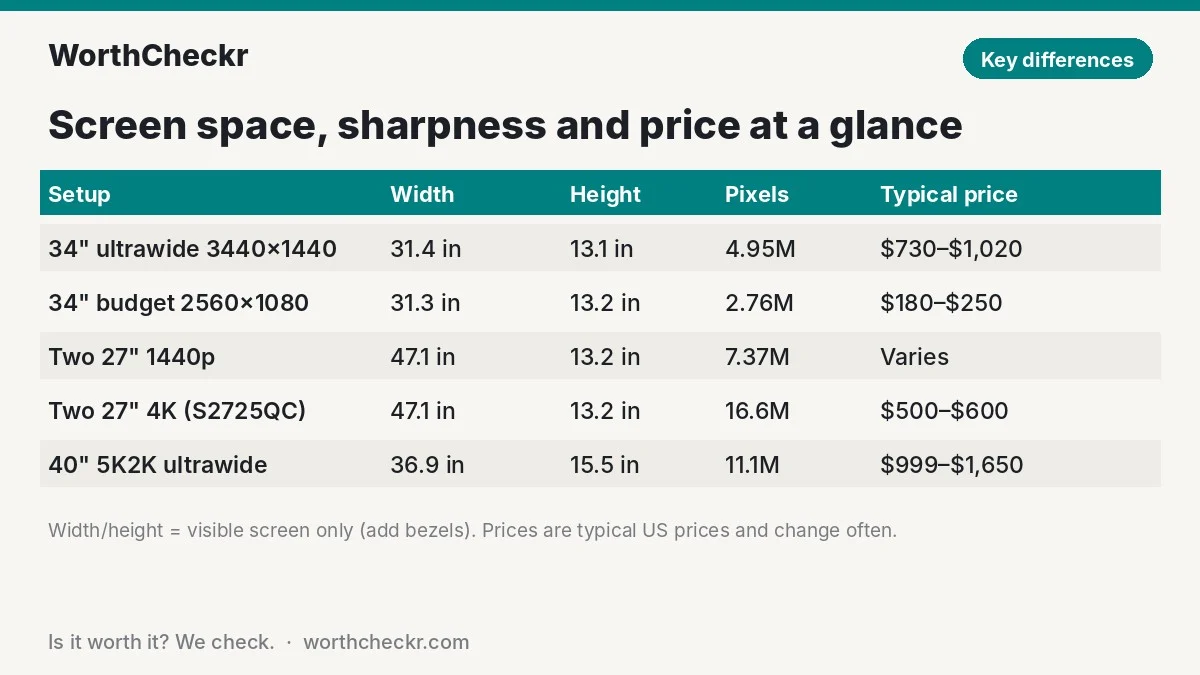
Marketing makes ultrawides sound huge, so the honest way to judge ultrawide vs dual monitors for work is to look at the geometry. We calculated the visible screen size of each common setup from its diagonal and resolution. The numbers below are screen area only; add an inch or two for bezels and leave room for speakers or a lamp.
| Setup | Screen width | Screen height | Total pixels | Sharpness |
|---|---|---|---|---|
| 34-inch ultrawide, 3440 x 1440 | 31.4 in (80 cm) | 13.1 in | 4.95 million | 110 PPI |
| 34-inch budget ultrawide, 2560 x 1080 | 31.3 in (80 cm) | 13.2 in | 2.76 million | 82 PPI |
| Two 27-inch 1440p monitors | 47.1 in (120 cm) | 13.2 in | 7.37 million | 109 PPI |
| Two 27-inch 4K monitors | 47.1 in (120 cm) | 13.2 in | 16.6 million | 163 PPI |
| 40-inch 5K2K ultrawide, 5120 x 2160 | 36.9 in (94 cm) | 15.5 in | 11.1 million | 140 PPI |
| 49-inch super ultrawide, 5120 x 1440 | 47.2 in (120 cm) | 13.3 in | 7.37 million | 109 PPI |
Three things stand out:
- A 34-inch ultrawide is exactly as tall as one 27-inch monitor. It’s essentially a 27-inch screen with a third added to the side. Two 27-inch screens give you half again as much area as the ultrawide.
- The budget ultrawide trap. Many budget 34-inch ultrawides often sold for around $180–$250, such as LG’s 34WP50S-W, run at 2560 x 1080. That’s barely more pixels than a 27-inch 1440p screen and noticeably soft text at 82 PPI. For office work, look for 3440 x 1440 at minimum.
- A 40-inch 5K2K is a 32-inch 4K screen stretched sideways. It matches a 32-inch monitor’s height while adding about nine inches of width, and it’s sharp enough for clean text on a Mac. It’s the only ultrawide class that beats two 1440p screens on pixel count.
Gadget Scout makes a similar pixel point, but desk width is what most remote workers run into first. Two 27-inch monitors need about 49 inches of frame width before any angling, so a 48-inch desk is a squeeze, while a 34-inch ultrawide fits comfortably on a 40-inch desk. Buying a new desk too? Our best standing desks for dual monitors guide covers widths and arm-friendly desktops.
Cost per pixel: what you get for your money
Dual monitors have long been the budget option in the ultrawide vs dual monitors for work debate, and current prices still back that up. Here’s what typical work-focused setups cost in the US at the time of writing, with our price-per-megapixel math. Prices move often, so treat these as a guide and check today’s deals.
| Setup (example models) | Typical price | Pixels | Cost per megapixel |
|---|---|---|---|
| Two Dell 27 Plus S2725QC (27-inch 4K, 65W USB-C) | About $500–$600 for the pair | 16.6 million | About $30–$36 |
| Dell UltraSharp U3425WE (34-inch 3440 x 1440, Thunderbolt 4 hub) | $1,019.99 at launch; sales have dipped to about $730 | 4.95 million | About $147–$206 |
| Samsung ViewFinity S8 S85TH (40-inch 5K2K, Thunderbolt 5) | $1,399 list, dipped to $999 on sale | 11.1 million | About $90–$126 |
| Dell UltraSharp U4025QW (40-inch 5K2K, Thunderbolt 4) | About $1,425–$1,650 at retailers | 11.1 million | About $129–$149 |
The gap is large. A pair of 27-inch 4K screens gives you more than three times the pixels of a 34-inch business ultrawide for roughly half to two-thirds of the price. Gadget Scout found the same pattern in UK pricing in August: two Dell S2725DC 1440p screens came to about £415, while the U3425WE sat at £670.
The fairer comparison, though, is features. The U3425WE includes a Thunderbolt 4 hub with 90W charging, 2.5GbE Ethernet and a built-in KVM, per Notebookcheck’s spec rundown. Add a decent Thunderbolt dock (often $200 or more) and a dual-monitor arm to the dual setup and the price gap narrows, though it doesn’t disappear. Our best 27-inch 4K USB-C monitors guide lists screens that can daisy-chain or charge a laptop on their own, which cuts the dock cost.
Check Samsung ViewFinity S8 price →
Screen sharing on Zoom and Teams
Screen sharing is where ultrawide vs dual monitors for work matters most day to day. It’s the most common complaint from ultrawide owners who work from home, and the one most buying guides skip. When you share your whole desktop, colleagues on regular 16:9 laptops see a thin strip with black bars above and below, and small text becomes hard to read. Owners in the Monzo community thread and Pete Matheson, who has used an ultrawide for about five years, both describe this.
There are fixes, but each adds a step:
- Share one window, not the screen. Zoom, Teams and Google Meet all let you pick a single app window. It’s the cleanest option and the one most owners settle on.
- Share a portion of the screen in Zoom. Zoom’s Advanced sharing tab includes a “Portion of Screen” option that puts a resizable frame on your desktop, as Cornell IT’s Zoom guide explains. Size it to roughly 16:9 and viewers see a normal-shaped picture.
- Keep a 16:9 screen for sharing. Several forum users park their laptop screen next to the ultrawide and share that, or pair an ultrawide with a small second monitor.
A window-management tool won’t solve this: one Monzo forum poster points out that you can’t share a single FancyZones area, only a full display or one window. With dual monitors, you just share the screen you want, which is why we give them the edge for anyone in client calls or daily stand-ups.
Window management on Windows and Mac
Window handling is the quieter half of the ultrawide vs dual monitors for work choice. Two monitors come with built-in boundaries. Drag a window to a screen, maximize it, done. An ultrawide needs a layout system, or windows end up stretched across 34 inches.
- Windows 11: Snap Layouts offer three-column layouts on wide screens. Microsoft’s free PowerToys FancyZones goes further, letting you draw custom zones and snap windows into them. Owners in the r/excel and Monzo threads mention it again and again, and one says it makes an ultrawide behave like separate monitors.
- macOS: Recent versions of macOS can tile windows to halves and quarters, but there’s no true three-column layout built in, so many Mac owners add a utility such as Rectangle or Magnet. Gadget Scout also rates Mac window handling on ultrawides as weaker.
- Excel tip: On either setup, View > New Window opens a second view of the same workbook, so you can keep two parts of one sheet side by side. r/excel commenters recommend it for both ultrawides and dual screens.
Dual setups have quirks too. A Jamf community poster using a MacBook with two external screens reports monitors forgetting their arrangement or rotating after sleep when connected through dongles. A single-cable ultrawide avoids that kind of problem.
Laptop docking, cables and KVM
If you work on a laptop, the cable side of ultrawide vs dual monitors for work favors the ultrawide. Micro Center notes that a USB-C ultrawide with power delivery can charge and connect a laptop with just two cables on the whole desk (power and USB-C). Two monitors mean two stands, two power bricks or cords, and either two video cables or a dock.
A few things to check before you buy either setup:
- MacBook Air and base M-series chips: Some base Apple chips support only a limited number of external displays, so two monitors may not work at all on older models. A single ultrawide sidesteps this. Check Apple’s tech specs page for your exact model.
- Daisy-chaining: Some USB-C monitors can pass video to a second screen over one cable from a Windows laptop. Macs generally don’t support this kind of chaining, so plan on a dock or two cables.
- Work and personal computers: Many work ultrawides, including the U3425WE and both 40-inch 5K2K models, have a KVM switch that shares one keyboard and mouse between two computers. Our best monitor with KVM switch guide explains how that works with a work laptop and a personal PC.
Neck comfort and desk setup
Comfort cuts both ways when you weigh ultrawide vs dual monitors for work. With two equal screens set side by side, the seam often sits right in front of you, so you end up turning your head to one side all day. Gadget Scout cites research linking dual-screen setups to more head and neck rotation. The fix is simple: put your main screen straight ahead and angle the second one to the side.
Ultrawides keep your main work centered, and one Monzo forum poster says neck strain eased after switching. But a very wide flat screen pushes the edges into your peripheral vision. That’s why almost every 34-inch and 40-inch work ultrawide is curved, and why Laptop Mag’s Brian Westover recommended curved models for anyone going ultrawide.
Practical setup tips for either option:
- Set the upper edge of each screen near eye height and keep roughly an arm’s length between you and the panel.
- For dual monitors, a dual monitor arm frees desk depth and lets you set the angle exactly. Check the arm’s weight rating per screen; our monitor arm compatibility checker tests your monitor against popular arms, including curved ultrawides.
- For an ultrawide, check the arm’s weight limit carefully: Micro Center notes ultrawides are heavier and need sturdier arms, and 40-inch models often exceed what budget arms can handle.
- On a standing desk, a single ultrawide puts less weight off-center than two screens on a long arm, which helps with wobble at standing height.
Ultrawide or two monitors: which should you choose?
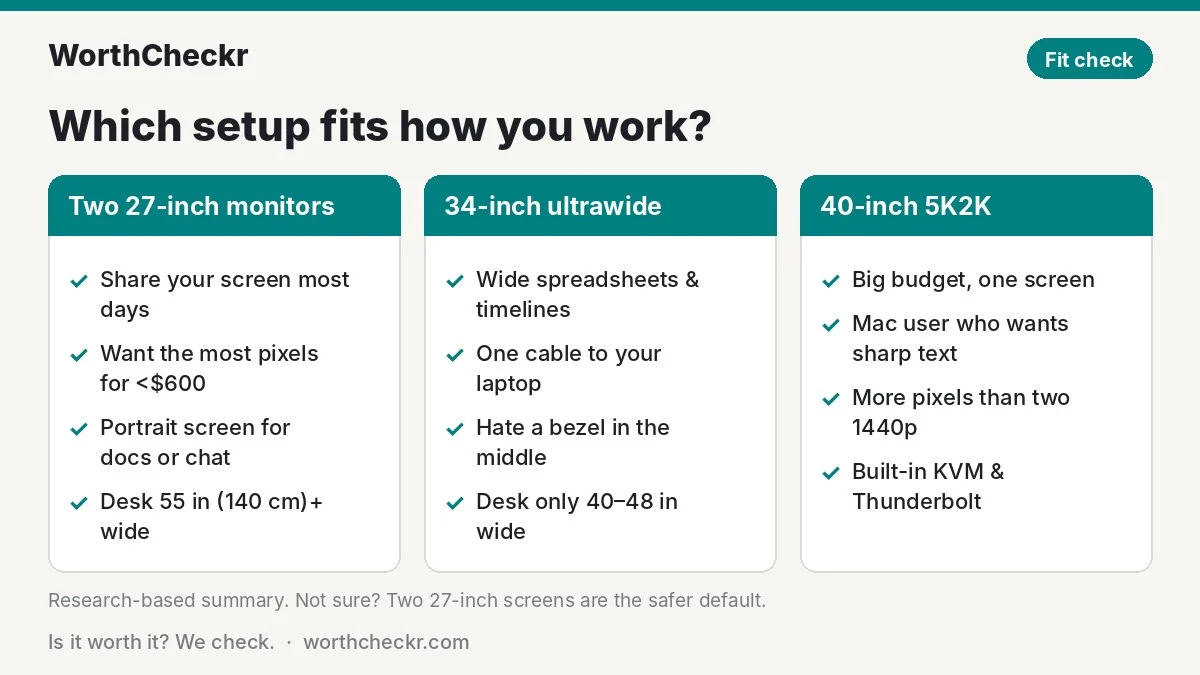
Use this decision table to settle ultrawide vs dual monitors for work based on how you actually spend your day.
| If you… | Buy |
|---|---|
| Share your screen in calls most days | Two 27-inch monitors |
| Want the most screen for under $600 | Two 27-inch 1440p or 4K monitors |
| Read long documents, code or chat feeds | Two monitors, one turned to portrait |
| Live in wide spreadsheets, editing timelines or audio software | 34-inch 3440 x 1440 ultrawide |
| Want one cable to your laptop and a clean desk | 34-inch USB-C or Thunderbolt ultrawide |
| Have a desk narrower than 48 inches | 34-inch ultrawide (or one 32-inch 4K) |
| Use a Mac and care about sharp text | Two 27-inch 4K or a 40-inch 5K2K ultrawide |
| Have a big budget and want one screen that does it all | 40-inch 5K2K ultrawide |
| Already own one good monitor | Add a matching second monitor |
There’s also a middle path many owners like: one ultrawide plus your laptop screen for chat and calls, or one ultrawide plus a small second monitor, a combination one Monzo forum poster suggests. And if neither option appeals, one 32-inch 4K screen is a tidy compromise; our 27 vs 32 inch monitor for work guide explains when that’s enough. Mac users weighing sharpness should also read 4K vs 5K monitor for Mac.
Check Dell S2725QC price → Check Dell U4025QW price →
What remote workers say after switching
Owner opinions on ultrawide vs dual monitors for work are split, and the split follows the type of work rather than the hardware. Here are the most common points across the forum threads and first-person write-ups we read.
Ultrawide owners like:
- Seeing a whole wide spreadsheet or comparing two files without a seam. Several Monzo and r/excel posters who work in Excel and Visio say they wouldn’t go back to 16:9.
- A calmer, more organized desk. Pete Matheson says a single screen forced him to choose what stayed visible, which made him feel more focused.
- Less cable clutter and one stand instead of two.
Ultrawide owners complain about:
- Awkward screen sharing in meetings (the most repeated complaint).
- Needing FancyZones or a Mac utility to keep windows tidy.
- Price, especially compared with two cheaper screens.
Dual monitor owners like:
- Easy snapping and sharing, with clear boundaries between tasks. In the r/excel thread, separate screens were the more popular choice, and one commenter switched back from an ultrawide for that reason.
- Mixing sizes and orientations, such as a portrait screen for chat or documents, which Jon Martindale at Digital Trends also highlights.
- Turning off one screen when it isn’t needed, and upgrading one screen at a time.
Dual monitor owners complain about:
- The bezel in the middle and more turning to look at the side screen.
- Display arrangements resetting after sleep on some Mac and dongle setups.
- Extra cables and stands taking up the desk.
Ultrawide vs dual monitors for work FAQ
Is an ultrawide better than two monitors for working from home?
Not for most people. Two 27-inch monitors cost less, give you more pixels and make screen sharing easier. An ultrawide is better if you work in one wide window, such as large spreadsheets or editing timelines, or you want a single-cable laptop setup.
Does a 34-inch ultrawide replace two 27-inch monitors?
Not fully. A 34-inch ultrawide is the same height as one 27-inch screen and about two-thirds the width of two, so it has roughly two-thirds the screen area and pixels. It feels closer to one and a third monitors.
Which ultrawide can replace two monitors?
A 40-inch 5K2K model (5120 x 2160), such as the Samsung ViewFinity S8 or Dell U4025QW, has about 11 million pixels, more than two 27-inch 1440p screens, and is as tall as a 32-inch monitor. A 49-inch 5120 x 1440 screen matches two 27-inch 1440p monitors exactly but needs a deep desk.
How do you share an ultrawide screen on Zoom or Teams?
Share a single app window instead of the whole screen. In Zoom you can also use Advanced sharing and choose Portion of Screen, then size the frame to roughly 16:9 so viewers see a normal picture.
What desk size do you need for two monitors?
Two 27-inch monitors need about 49 inches of width before angling, so a desk 55 inches (140 cm) or wider is comfortable. A 34-inch ultrawide fits on a desk about 40 inches wide.
Are ultrawide monitors bad for your eyes or neck?
No, as long as you set them up well. Choose a curved model so the edges stay in comfortable view, keep the top of the screen near eye level and sit about an arm’s length away. With two monitors, put the main screen straight ahead rather than centering the seam.
Bottom line
In the ultrawide vs dual monitors for work decision, two 27-inch monitors are the better buy for most people who work from home. They deliver about 50% more pixels than a 34-inch ultrawide (or more than three times as many with 4K panels), cost less per pixel, and make screen sharing in meetings painless. Choose a 34-inch 3440 x 1440 ultrawide if your work lives in one wide window or you want a tidy single-cable laptop desk, and skip 2560 x 1080 models for office work. If budget allows, a 40-inch 5K2K ultrawide is the one screen that comes close to giving you both.
We’ll update this guide as prices change and new work ultrawides and dual-friendly monitors arrive.
More monitor guides: Monitors · Samsung ViewFinity S8 vs Dell U4025QW 40-inch 5K2K comparison · How to choose a monitor for working from home
Sources: Digital Trends (Jon Martindale) · CNN Underscored · Micro Center · Gadget Scout · Laptop Mag (Brian Westover) · Pete Matheson · Notebookcheck (U3425WE specs) · Cornell IT (Zoom sharing) · Monzo Community · Jamf Nation · LG (34WP50S-W specs) · Slickdeals (U3425WE deal)